
Introduction
Digital transformation does not stop at contract and document processes. With the Shareflex DigitalSign API, Shareflex provides a powerful and configurable best-practice module to integrate digital signature processes directly into the Shareflex interface. The module supports Adobe Sign and DocuSign, so organizations can keep using their existing license models and security standards. Communication between Shareflex and the provider runs via the provider’s API.
Supported Providers
- Adobe Sign (Enterprise license required)
- DocuSign
Supported Shareflex Solutions
- Shareflex Contract
- Shareflex Documents
Integration takes place entirely within the Shareflex file interface—for users, administrators and project teams.
Integration in Shareflex Contract interface
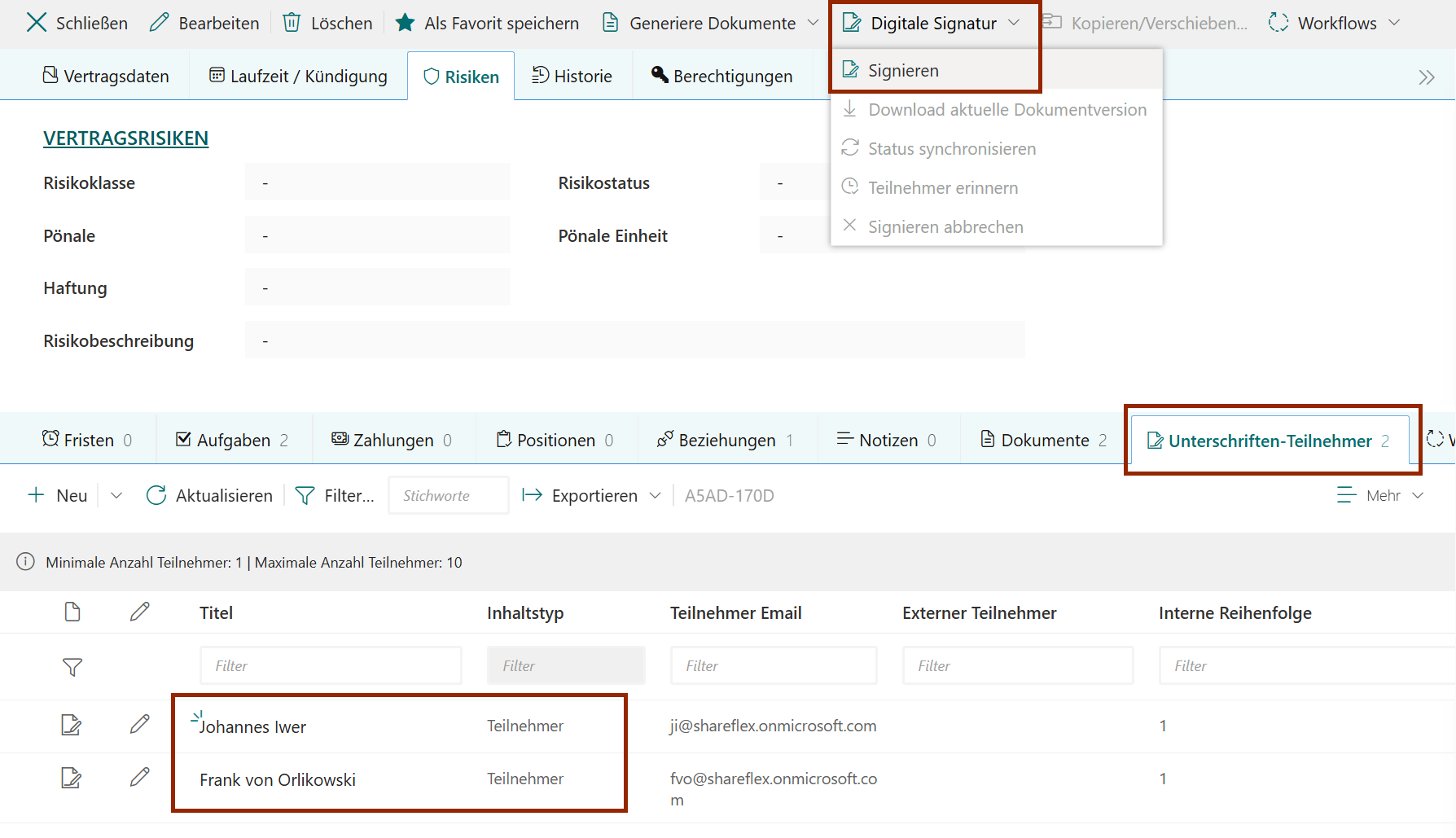
Benefits by Role
- Users: Start and manage the entire signature process directly in Shareflex—no need to leave the platform.
- Administrators: Reuse existing API licenses and configure the solution via the Shareflex administration website.
- Project teams: Customize the UI, signature flow and email templates where needed.
Overview
The Shareflex DigitalSign API module enables full integration of digital signature processes into Shareflex Contract and Shareflex Documents. Communication between Shareflex and the signature provider runs via the provider’s API.
Provider options
- Adobe Sign
- Use a user-specific Adobe Sign account
- Or use a shared (service) account for all signature processes
- DocuSign
- Use a shared (service) account for all signature processes
Prerequisites
- To use the Adobe Sign API, the customer must have an Adobe Sign Enterprise license.
General Functions
Users can start and manage digital signature processes without leaving Shareflex.
User Interactions
- Configure active signature participants in Shareflex
- Optional: configure authentication method
- Configure informational recipients (CC)
- Start a signing process with one or more selected documents
- Add a comment for participants
- Configure provider emails
- Configure automatic reminders
- Start in authoring mode (place signature fields in provider portal)
- Send reminders
- Replace participants
- Query status / download document with current signatures
- Manually terminate the process
- Manually synchronize provider → Shareflex
- Manually download the current document version (incl. partial signatures if available)
Important: Per contract/transaction file, only one active signature process can exist at a time. One or more documents can be included in that process.
Automatic Background Actions
- Automatic synchronization/status checks with the provider
- Completed documents are automatically filed (optionally incl. audit trail)
- Canceled processes are transferred to Shareflex (incl. Shareflex notification for the initiator)
A common cancellation reason is a refused signature at the provider side.
Customization
If the standard functions are not sufficient, project-specific adjustments can be made to the UI and background actions.
Typical Signature Process
- Configure participants: Select signers and optional authentication methods.
- Start signing: Select documents, configure emails/reminders, optionally enable authoring mode.
- Synchronize status: Manual or automatic synchronization with the provider.
- Download current version: Download the current document state (possibly with initial signatures).
- Send reminders: Provider-based reminders (no Shareflex notifications).
- Cancel signing: Cancel with a reason.
- Completion: Signed document is automatically stored and visible in the file.
The available process actions can vary per project and can be enabled/disabled in configuration. Action names can also be customized; this documentation uses standard names.
Configure Signature Participants
With the Shareflex DigitalSign module, users can manage signature participants directly in the Shareflex web interface. The secondary list in the contract/document file provides a clear overview of all participants and their status.
Adding Participants
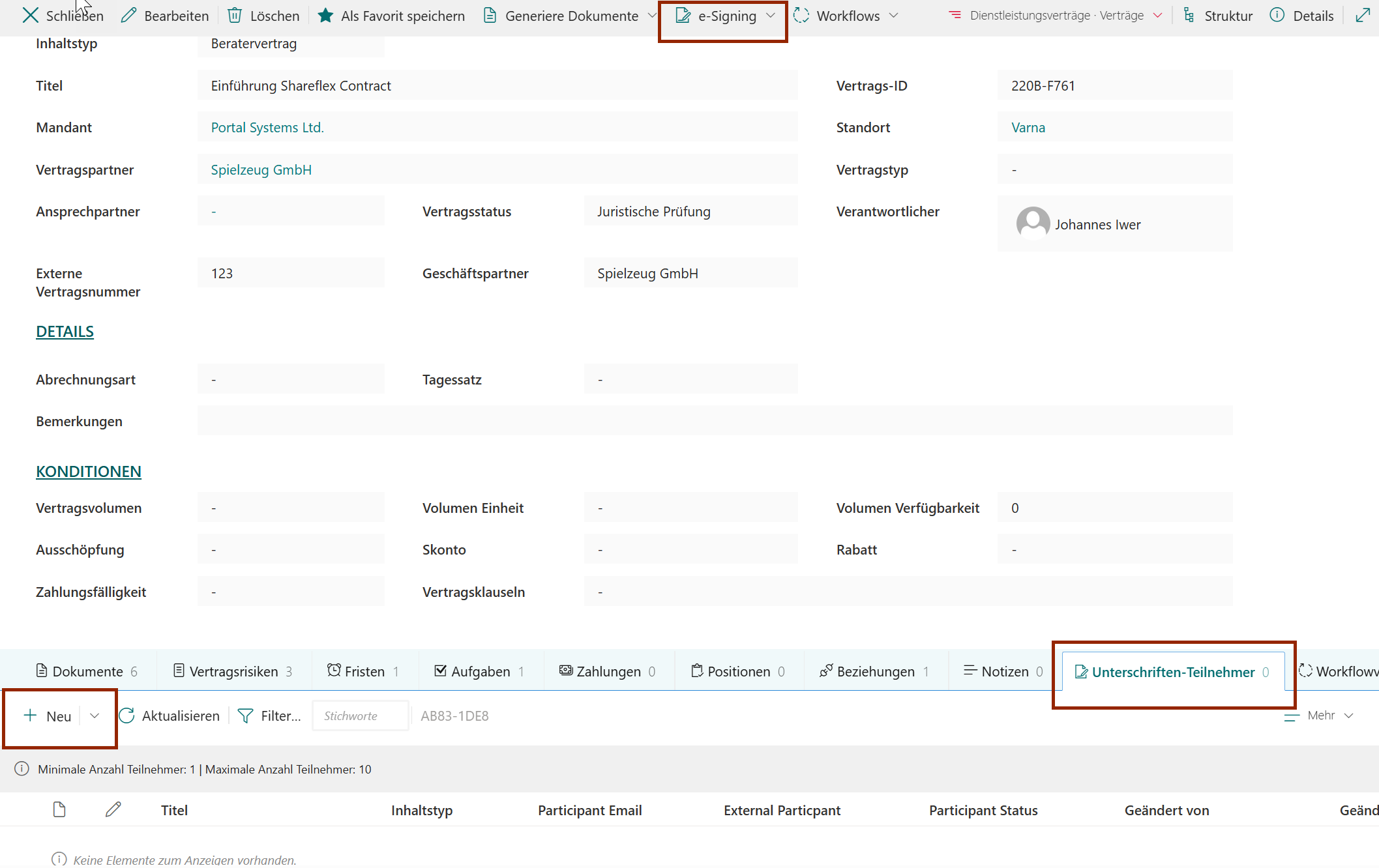
- Open the file in Shareflex Contract or Shareflex Documents.
- Open the secondary list “Signature participants”.
- Click New to add a participant.
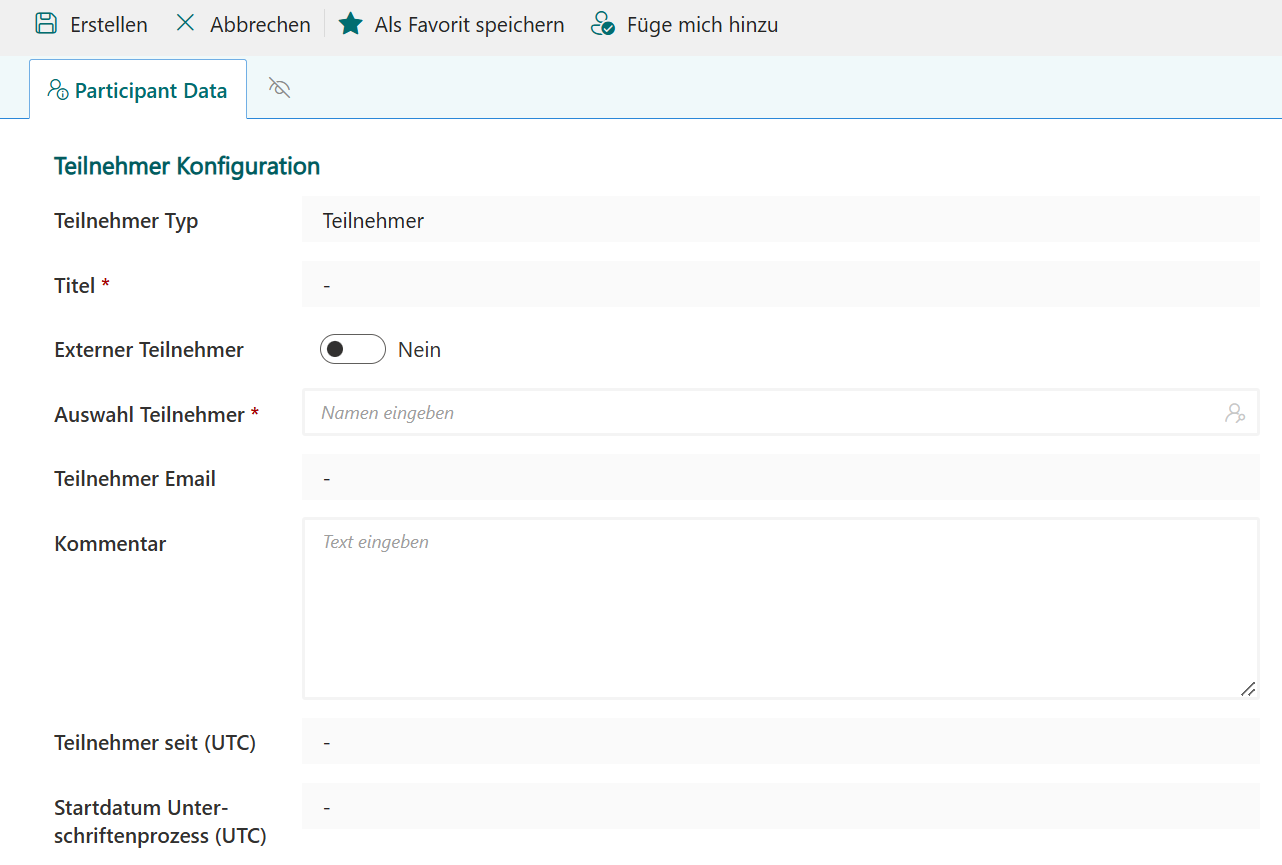
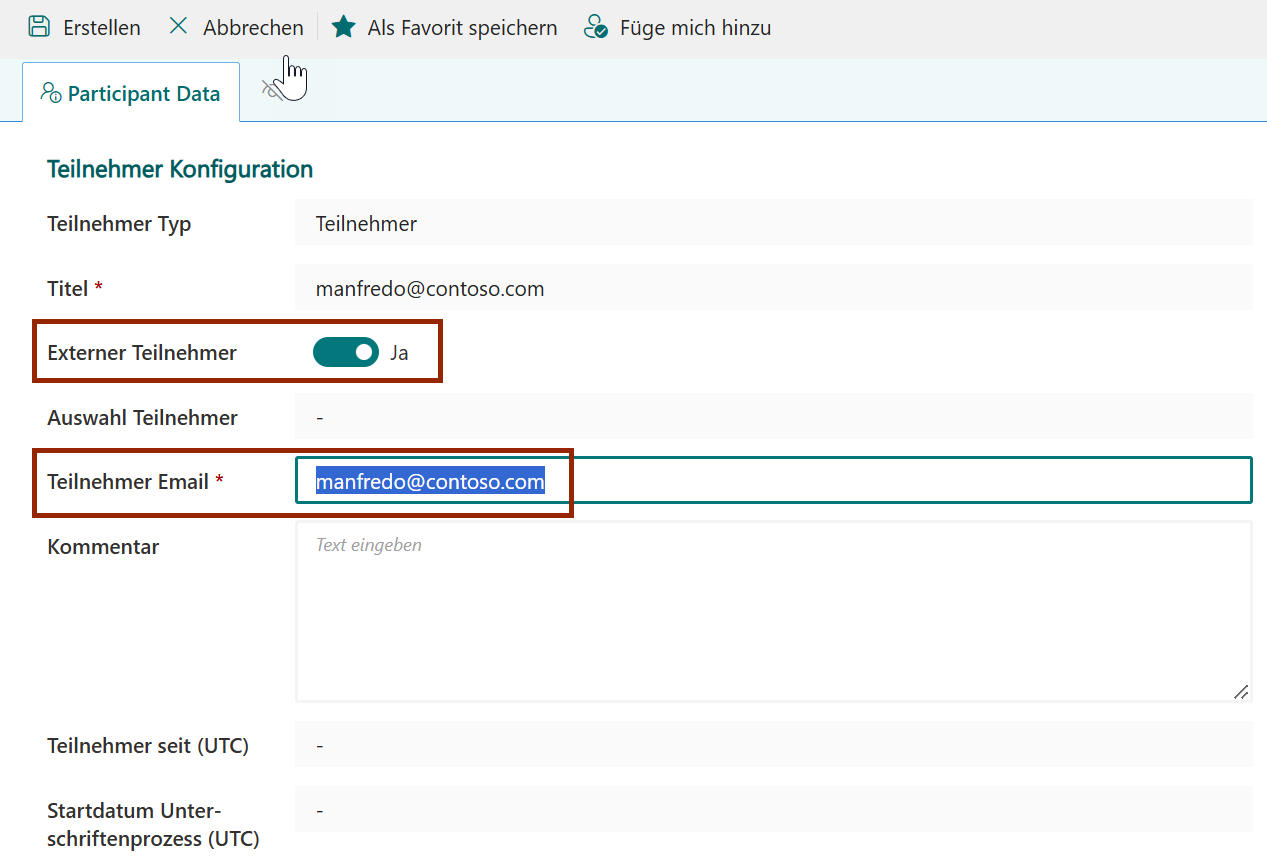
External participant (outside the tenant)
Enable External participant and enter a valid email address in Participant e-mail.
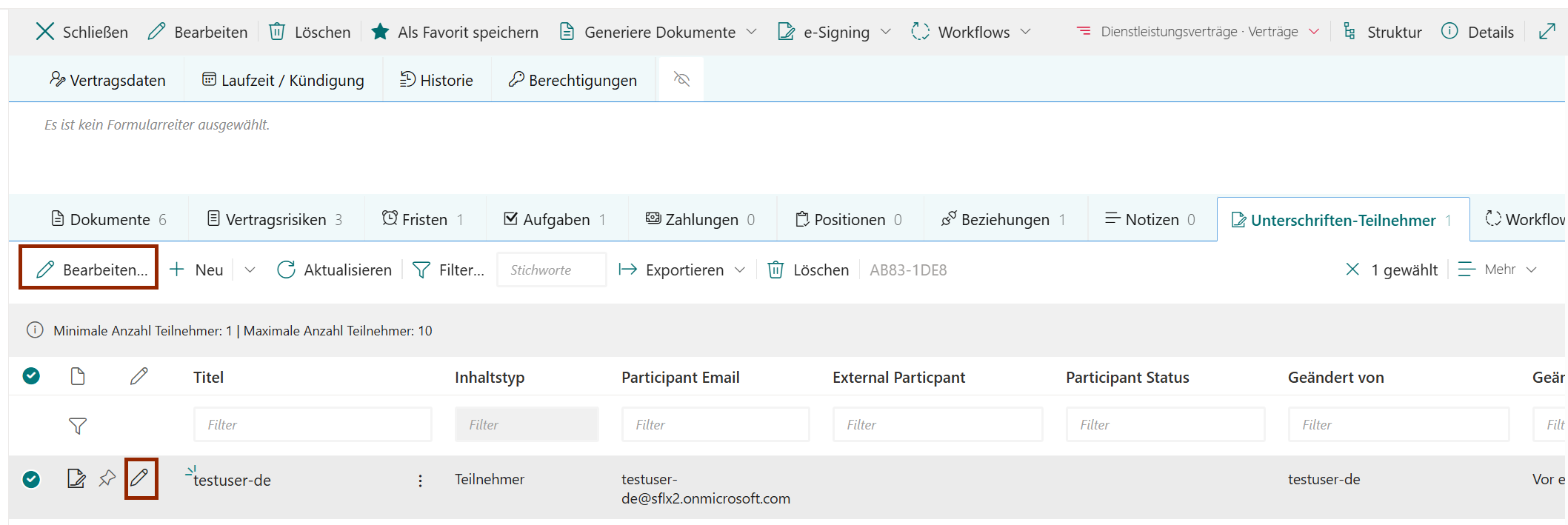
Edit Participant
Participants can only be edited before starting the signing process. Select the entry and click Edit (or use the
pencil icon).
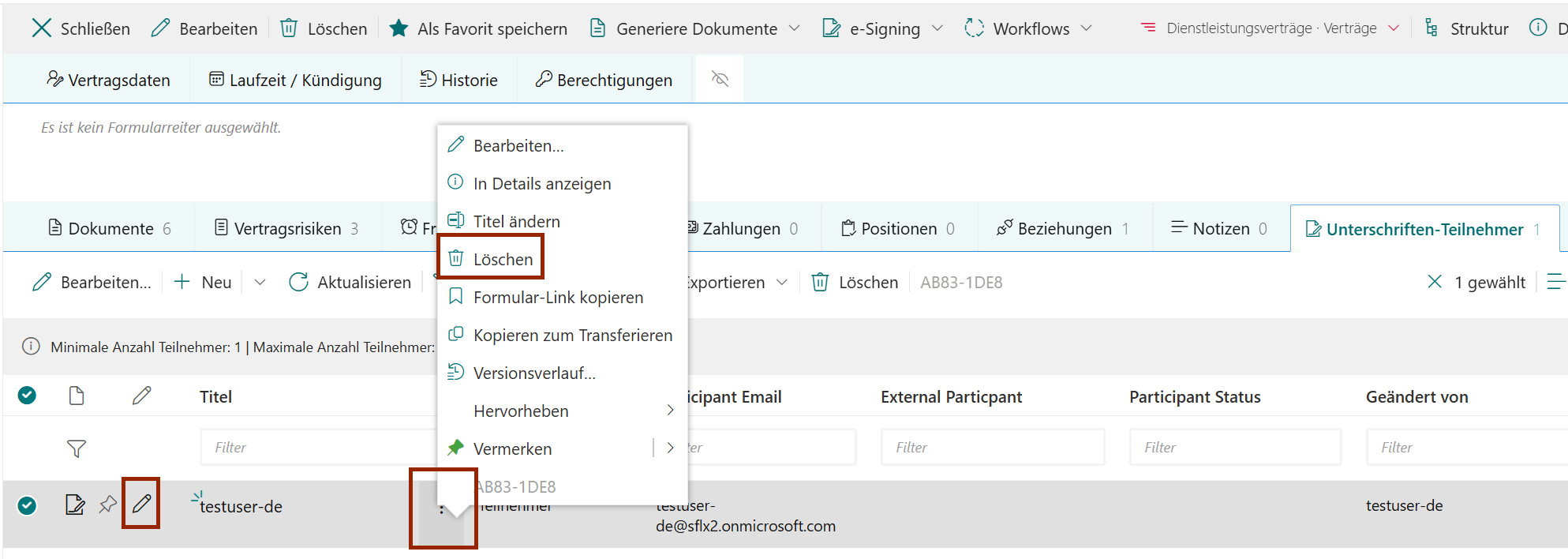
Delete Participant
Participants can only be deleted before starting the signing process. Select the entry and click Delete (or use the
menu behind …).
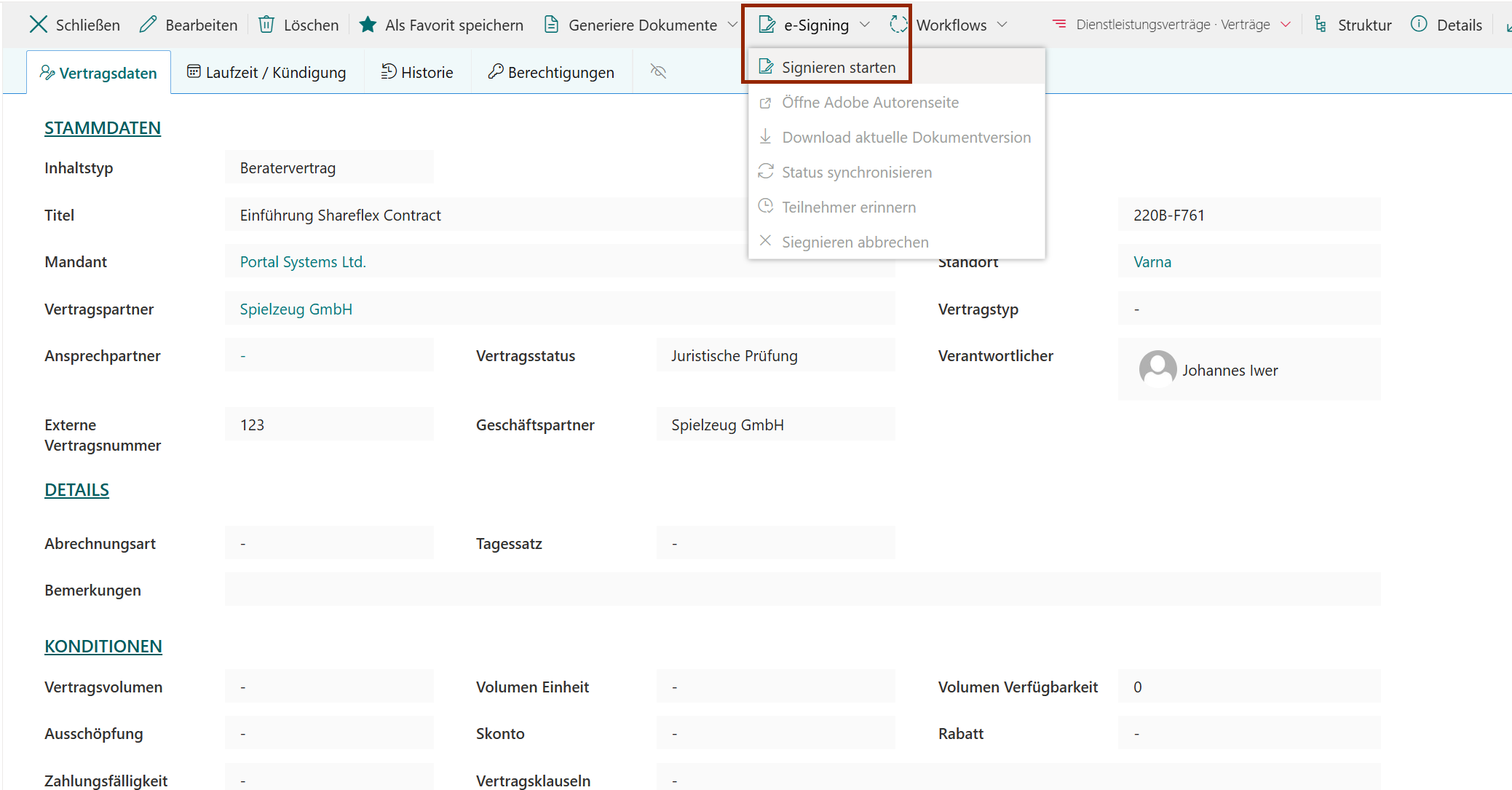
Start Signing
- Open the contract/case file.
- Click e-Signing.
- Choose Start signing.
Configuration dialog
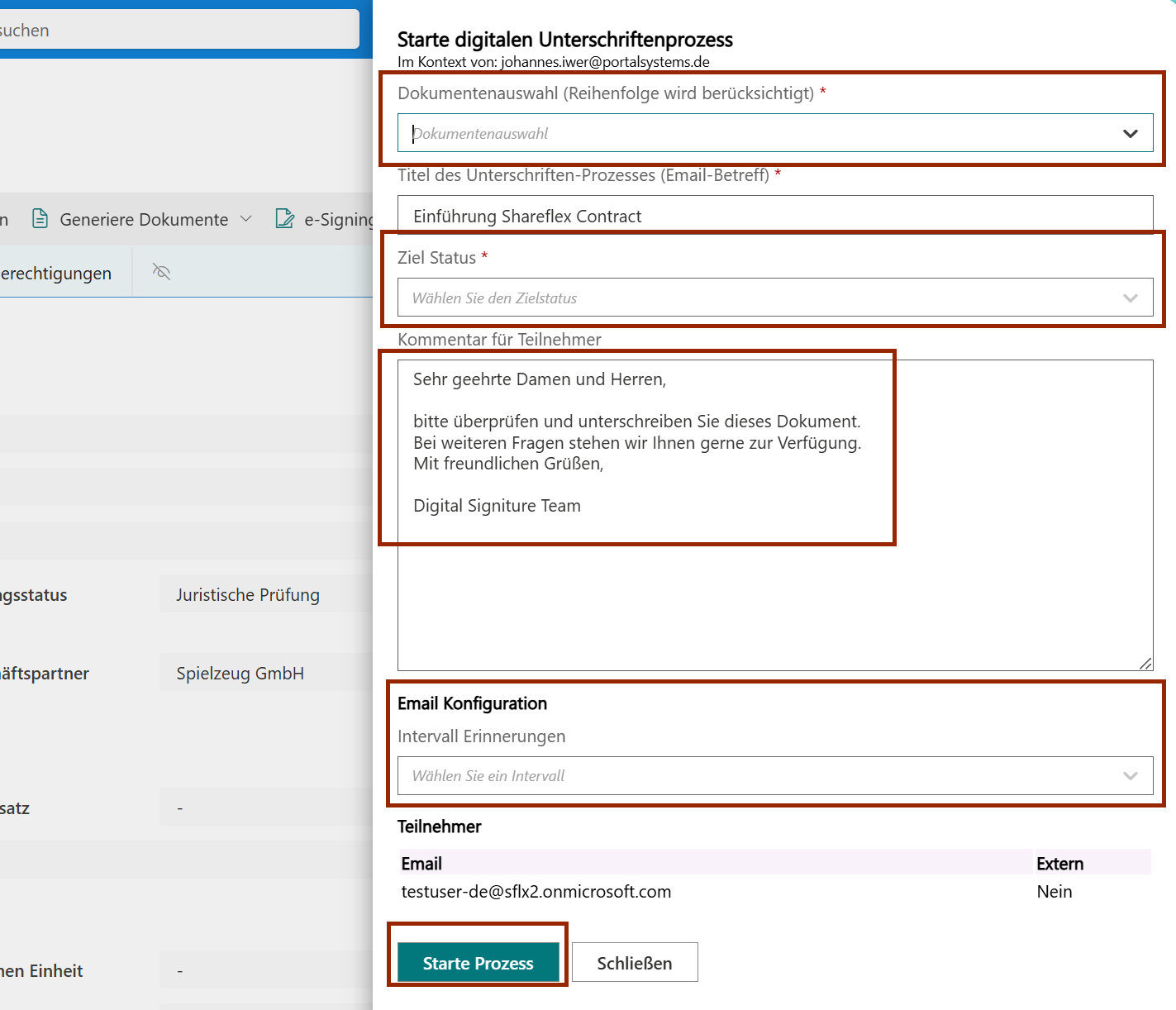
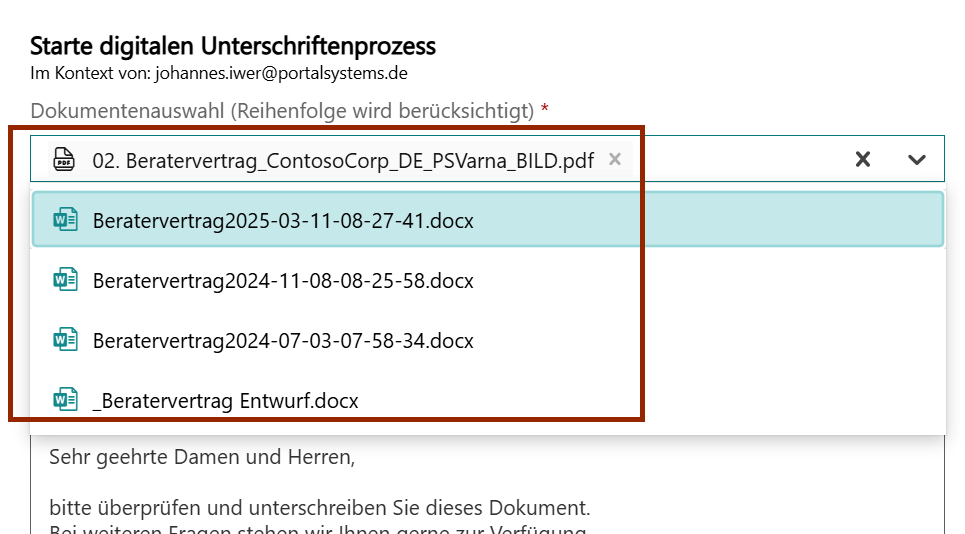
Select document(s)
Select one or more documents from the list.
Target status & signature placement
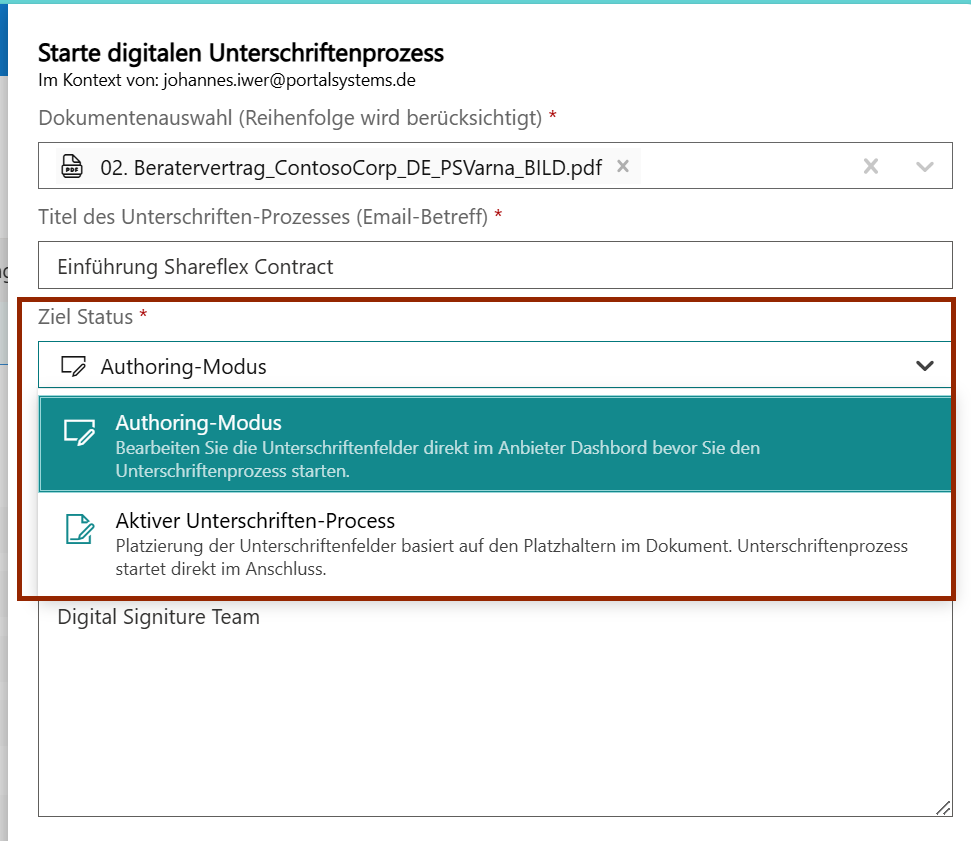
- Authoring: The current user places signature fields manually in the provider portal.
- Active signature process: Signature placement is done automatically using placeholders in the document.
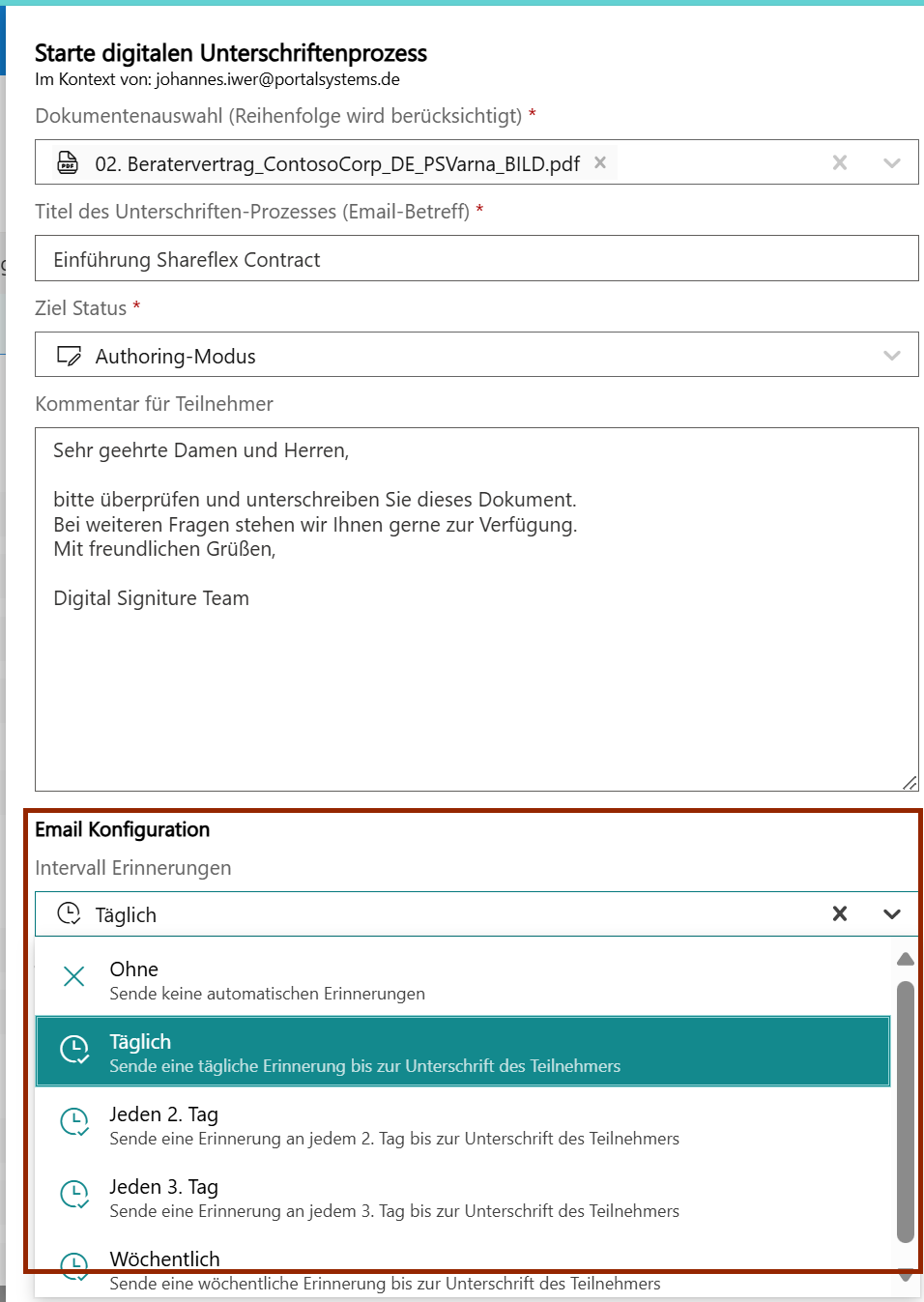
Email configuration & reminders
Configure reminder timing. These settings apply to all participants and can be aligned with provider templates.
Comment for participants
Optionally add a comment that participants will see in the invitation. A comment template can be configured in the
administration.
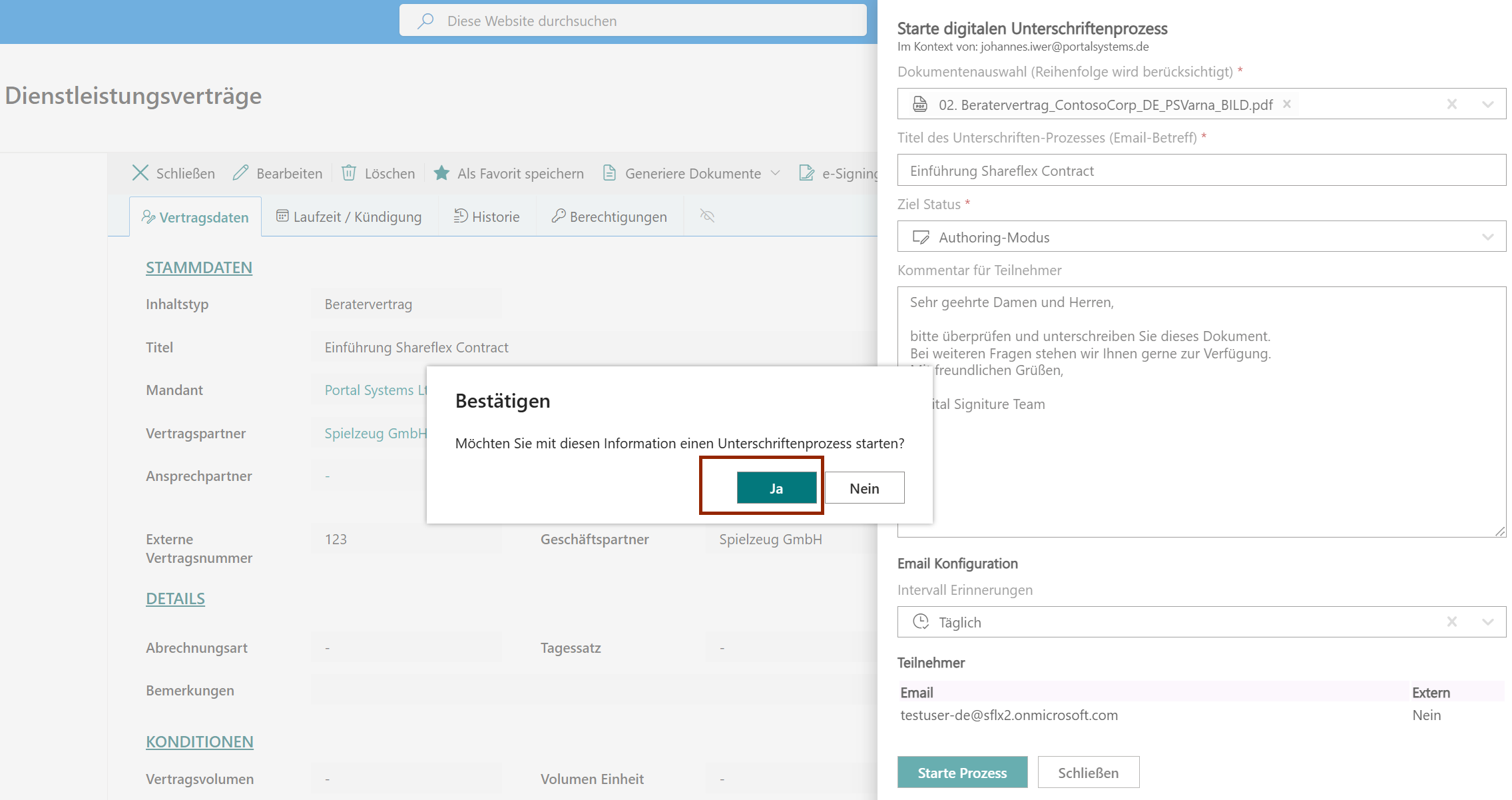
Start the process
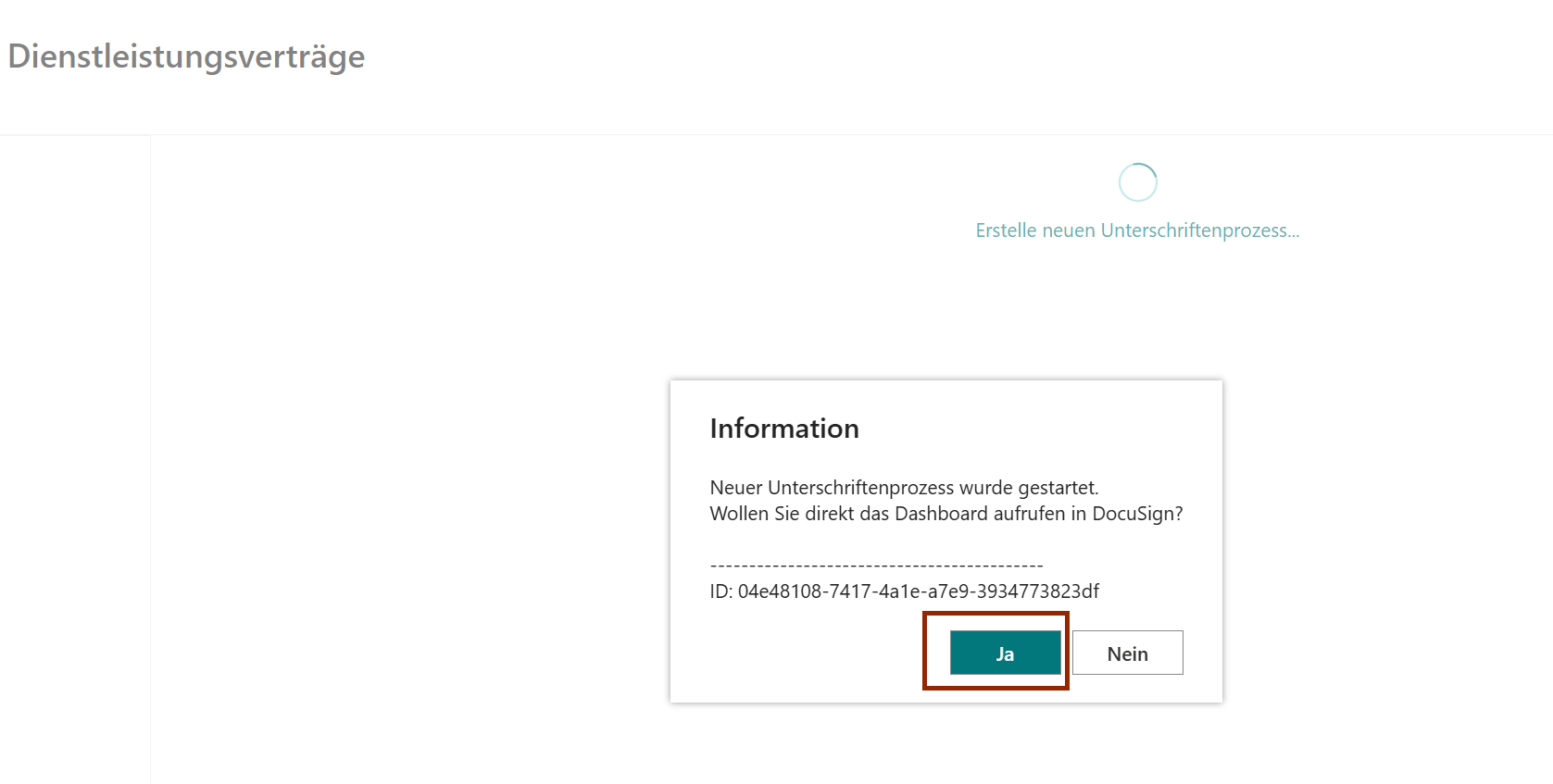
Click Start process and confirm the pop-up.
Success confirmation
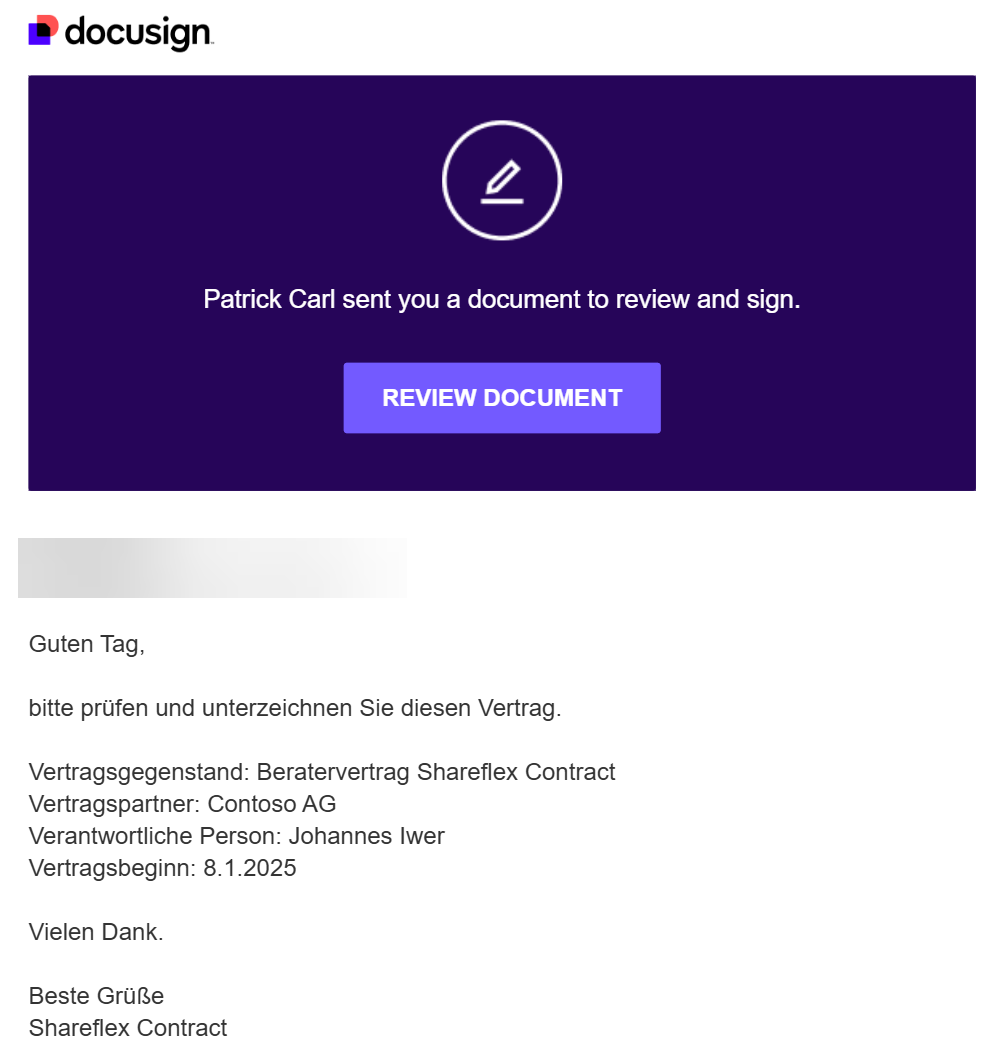
Notification emails
Participants receive an email from the signature provider.
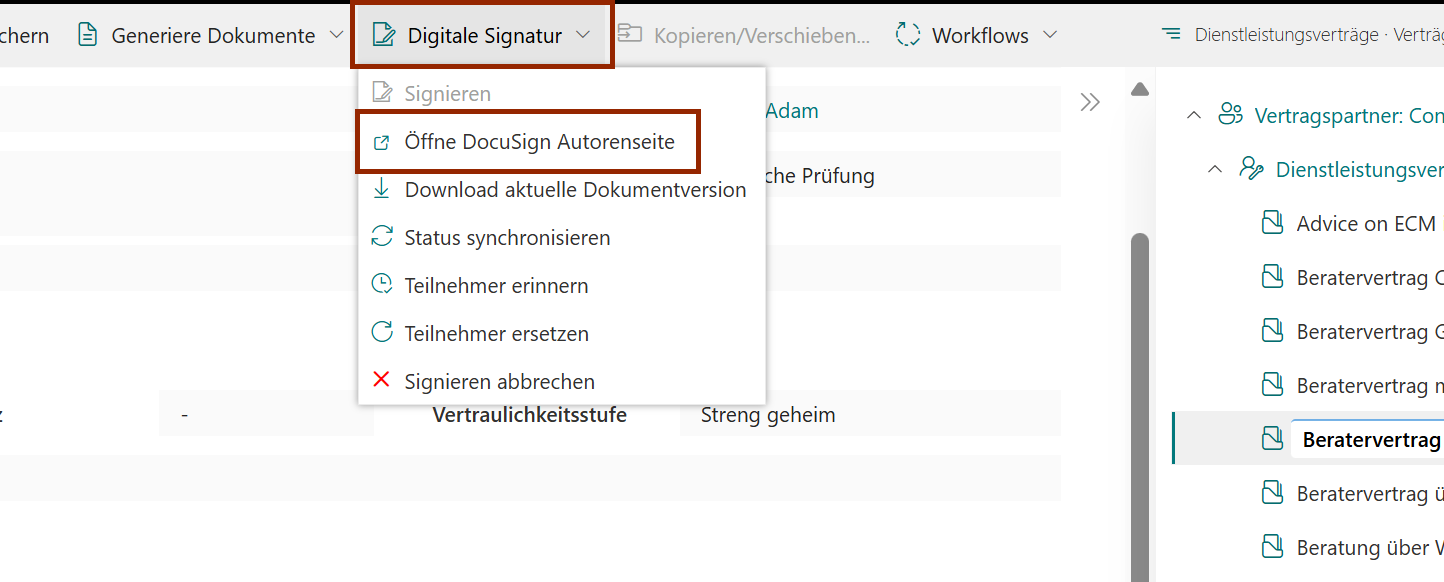
Open Author Page
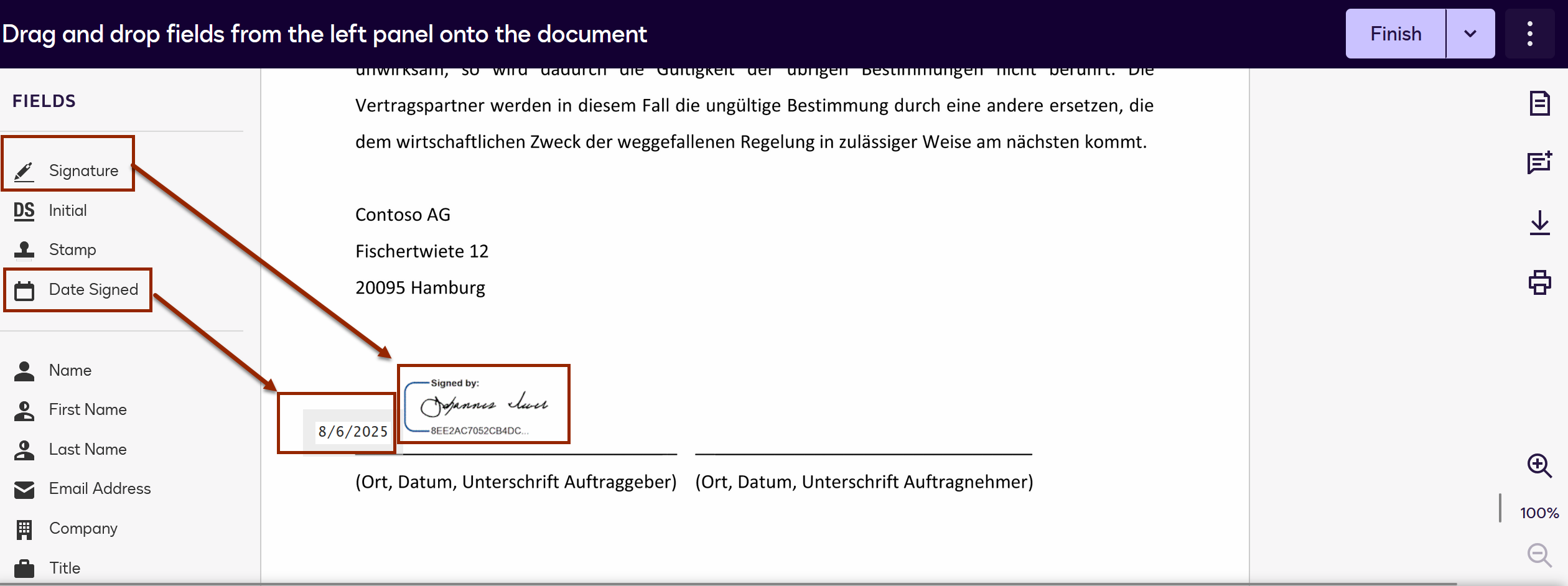
Use the author page to place signature fields precisely in the provider portal (Adobe Sign or DocuSign). This is useful for
complex document layouts or special requirements.
- Open the contract/case file.
- Click e-Signing.
- Select Open author page.
Place signature fields in the provider portal and save.
Download Current Document Version
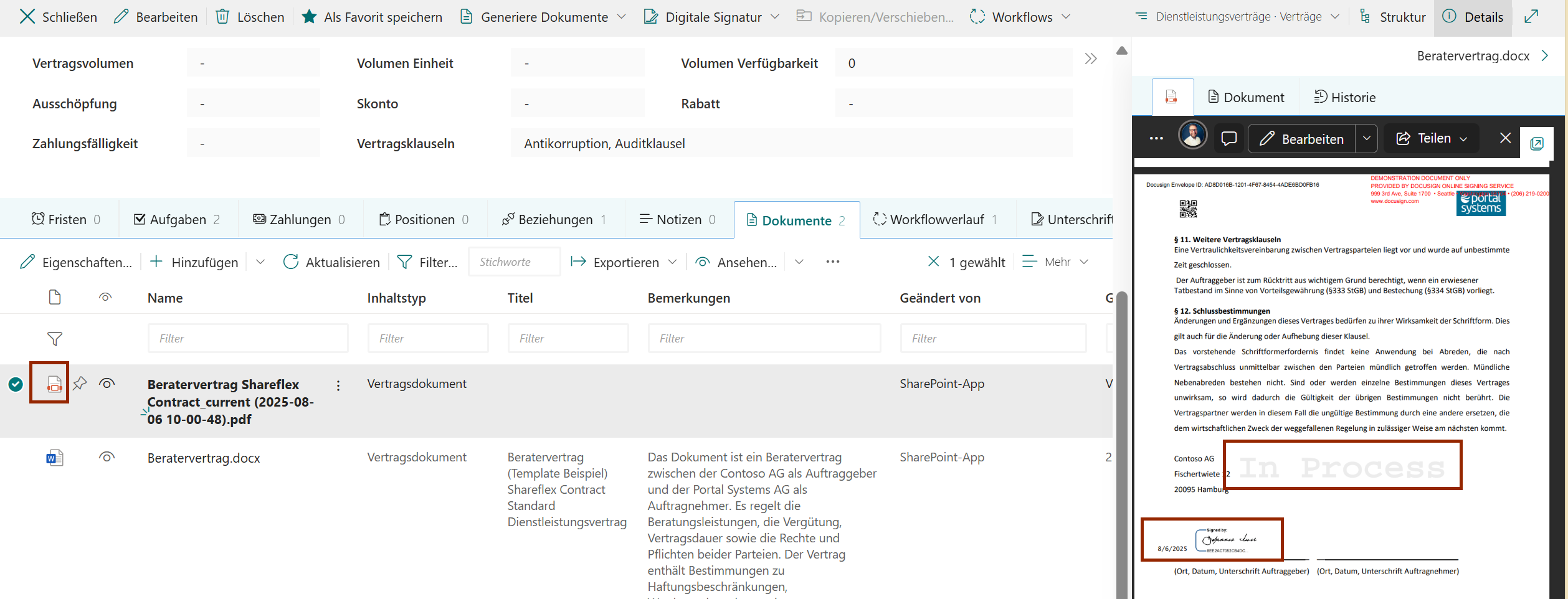
Download the current version during an active process to see the latest signature progress. The file may include signatures
already executed and is marked with an In progress watermark.
- Open the file.
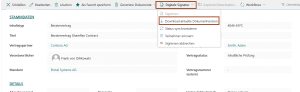
- Click e-Signing → Download current document version.
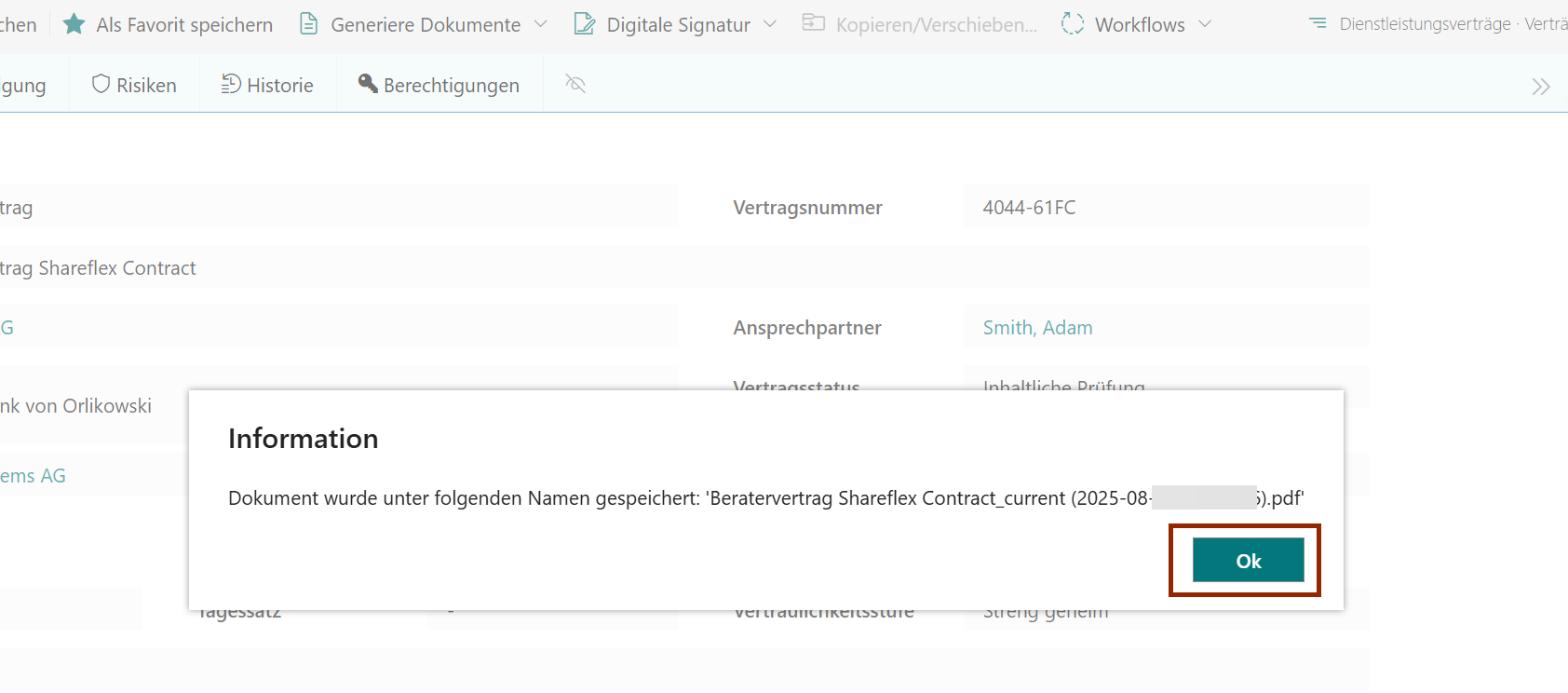
- Confirm the pop-up.
The downloaded version appears in the Documents tab.
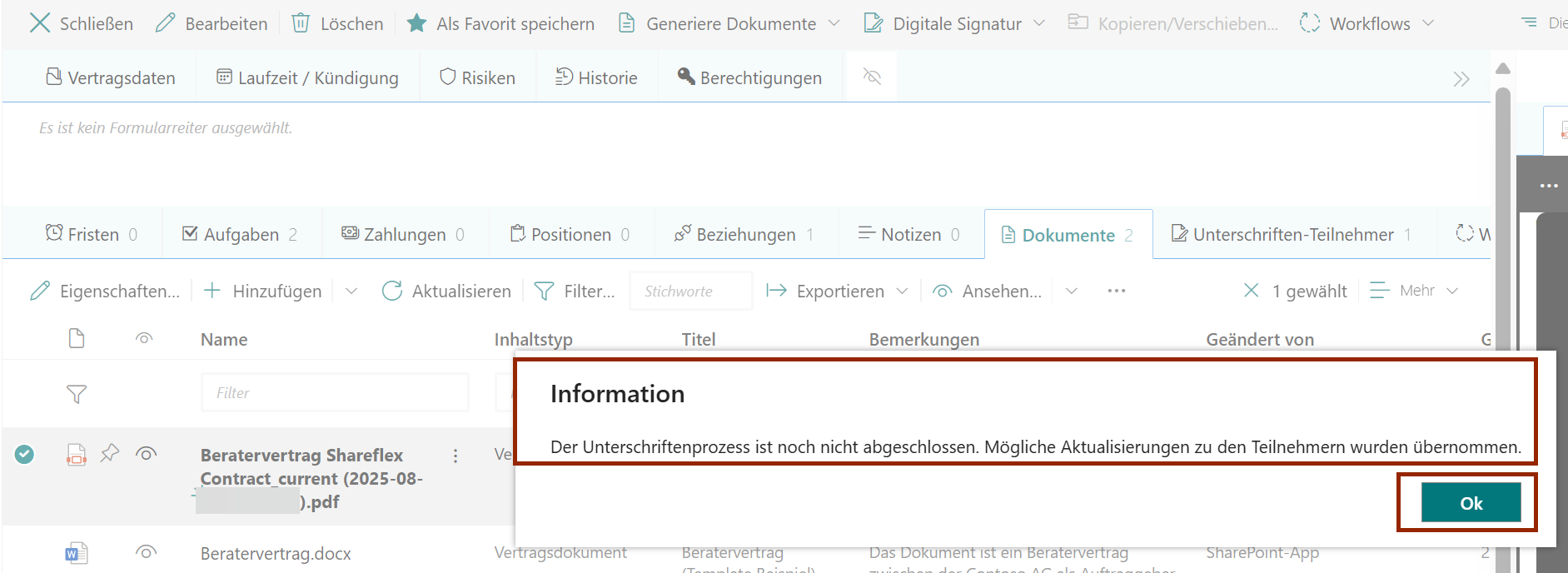
Synchronize Status
If you need an immediate update (instead of waiting for the TimerJob), you can manually synchronize the status with the
provider.
- Open the file with an active signature process.
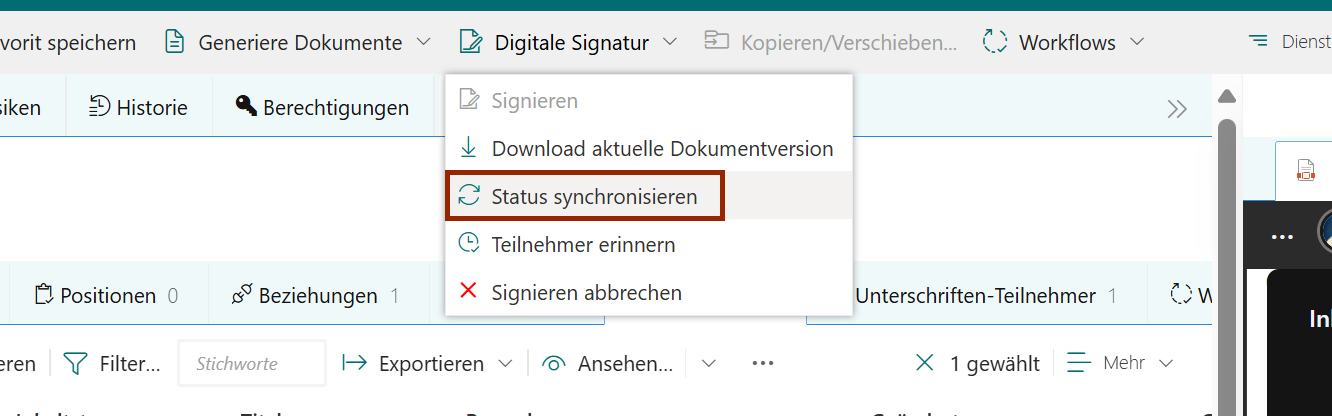
- Click e-Signing → Synchronize status.
- Confirm completion.
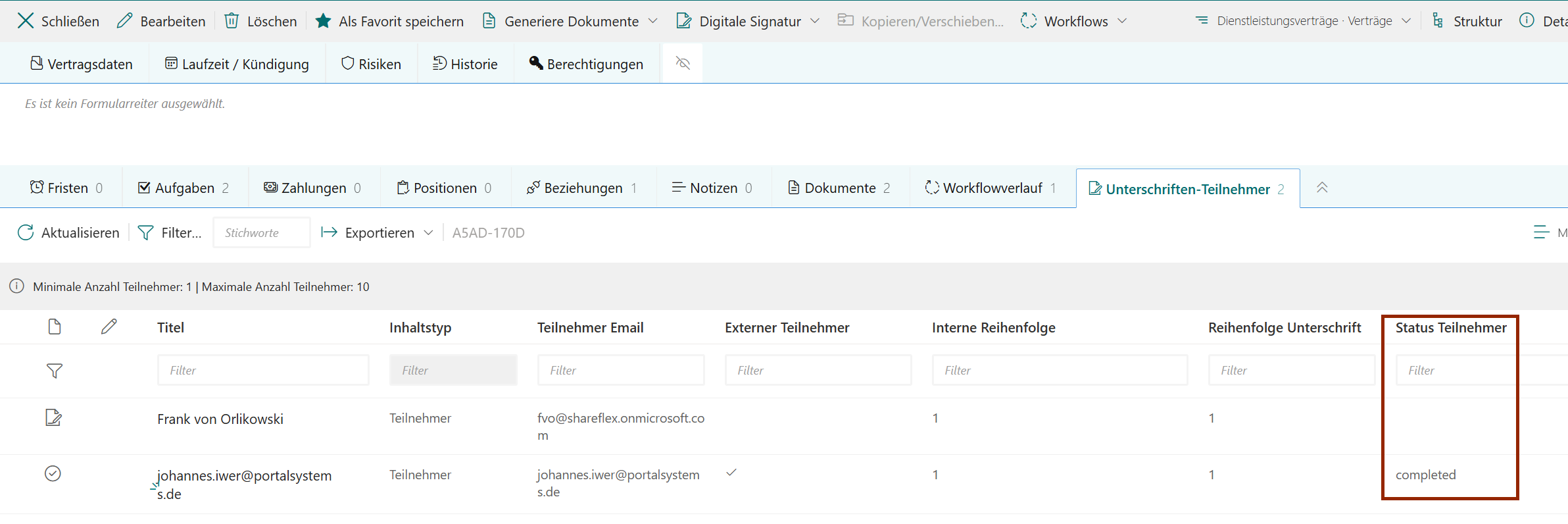
Check the updated participant statuses in Signature participants.
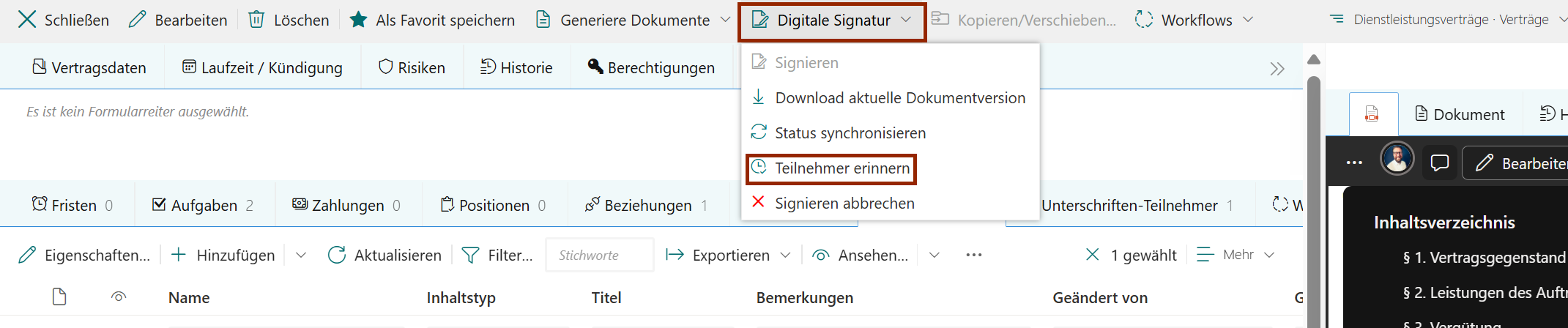
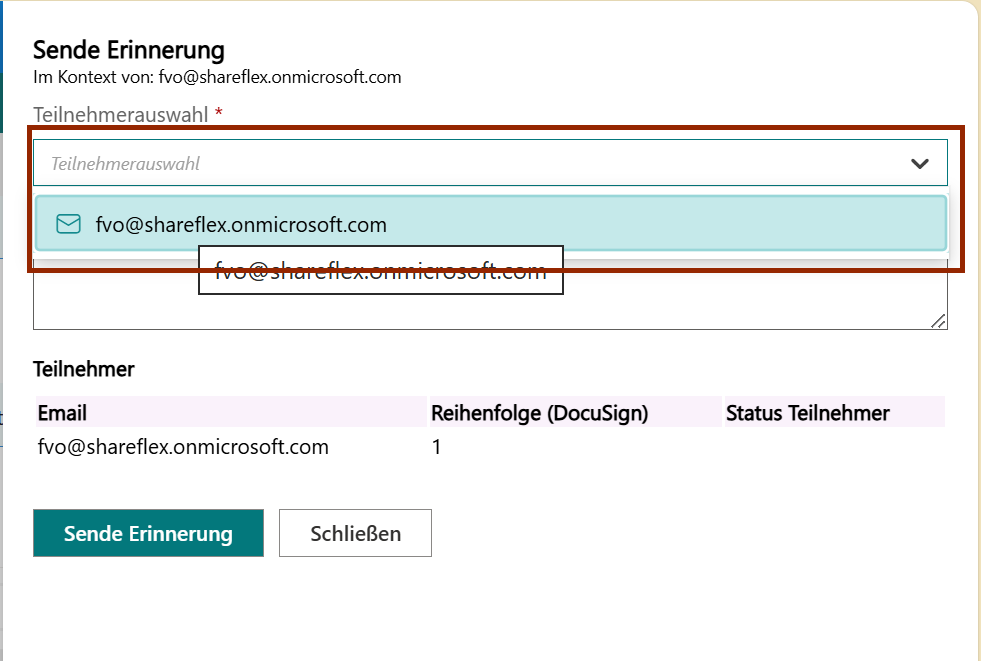
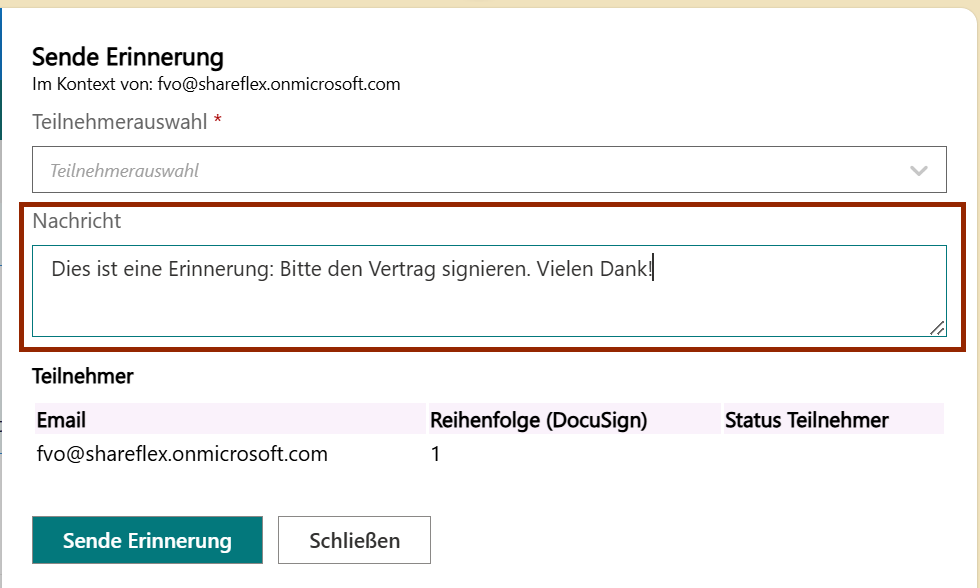
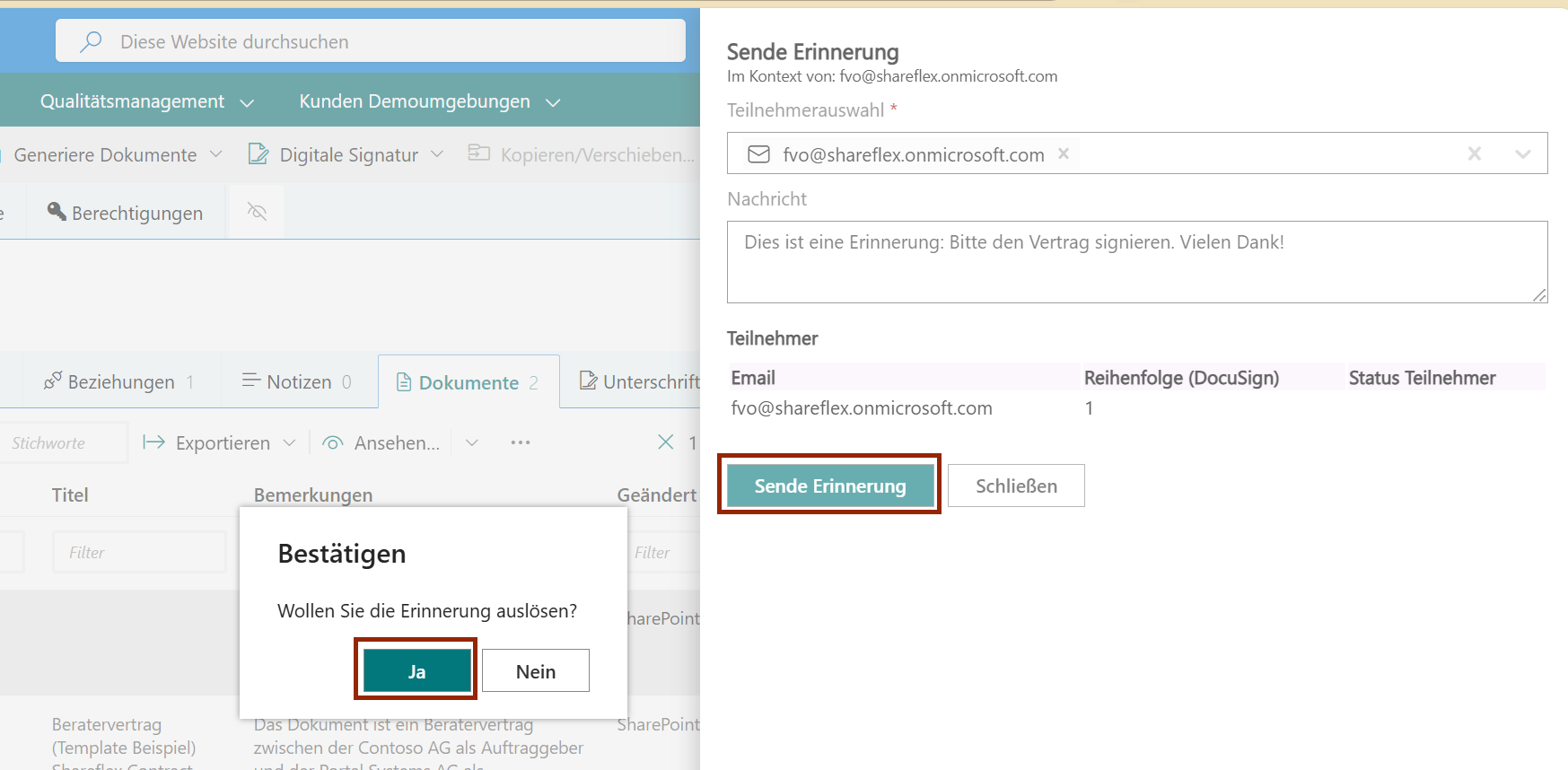
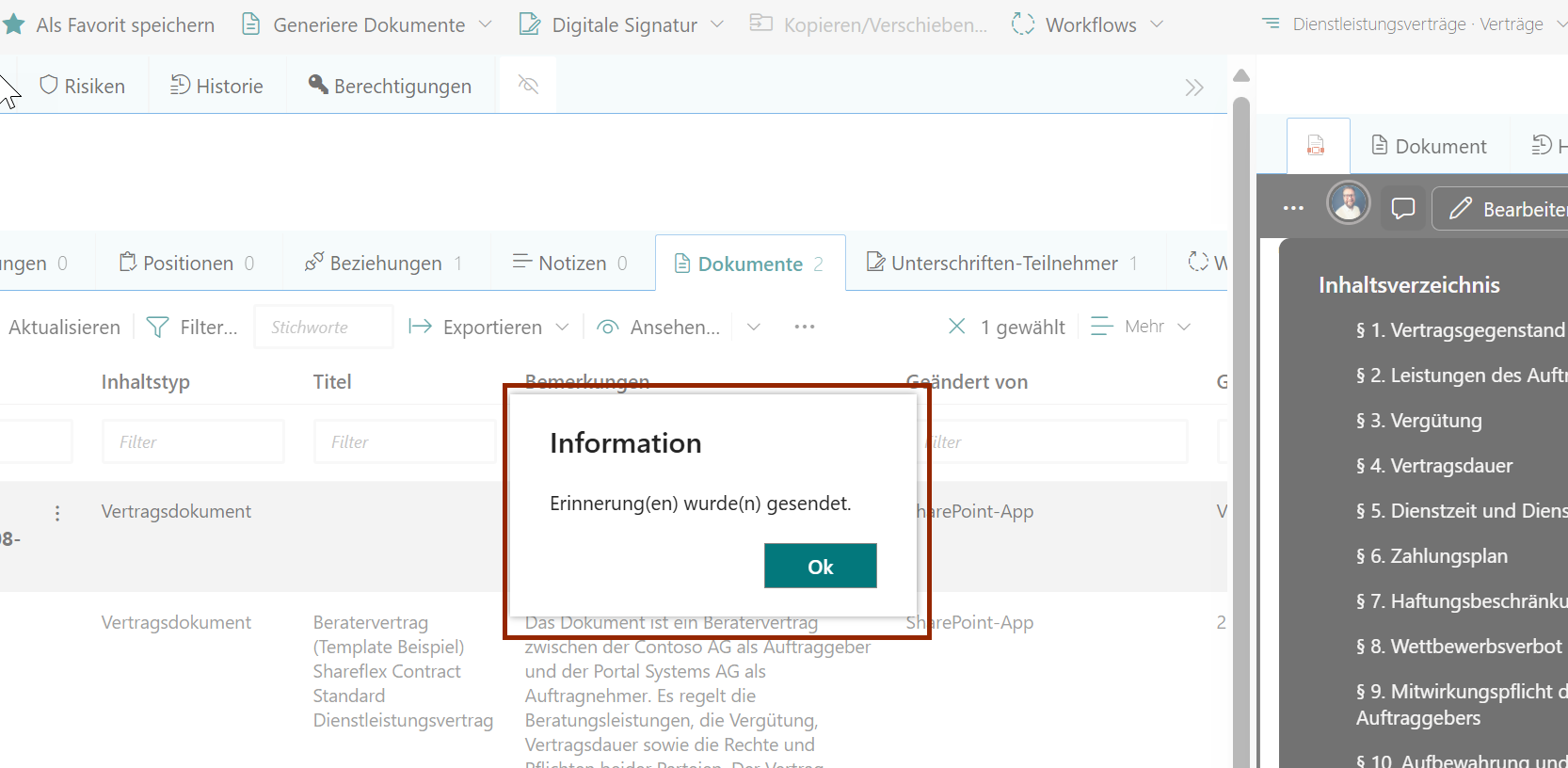
Remind Participants
- Open the file with an ongoing signature process.
- Click e-Signing → Remind participant.
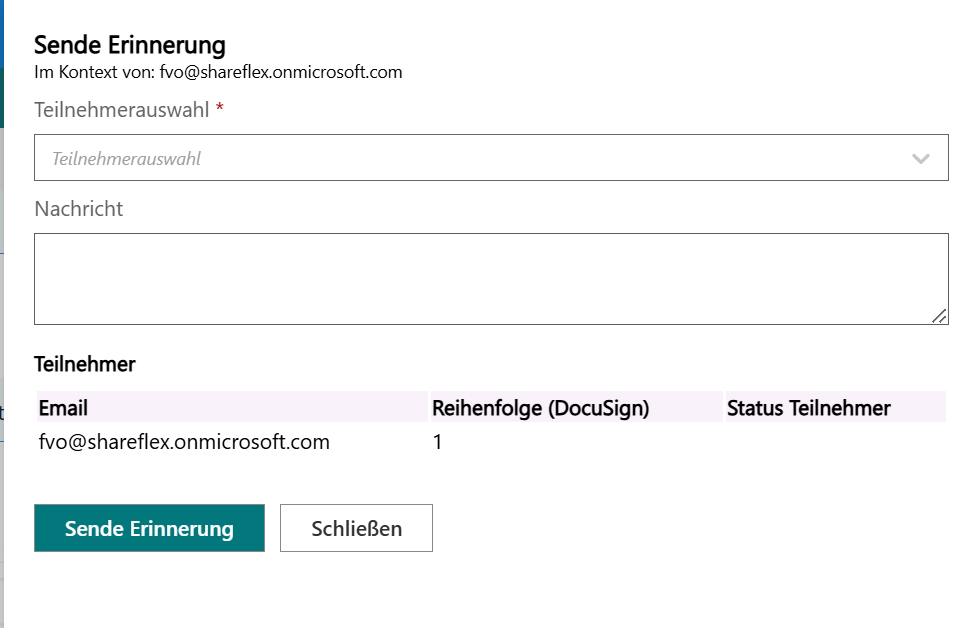
- Select participant(s) and enter a message.
- Click Send reminder and confirm.
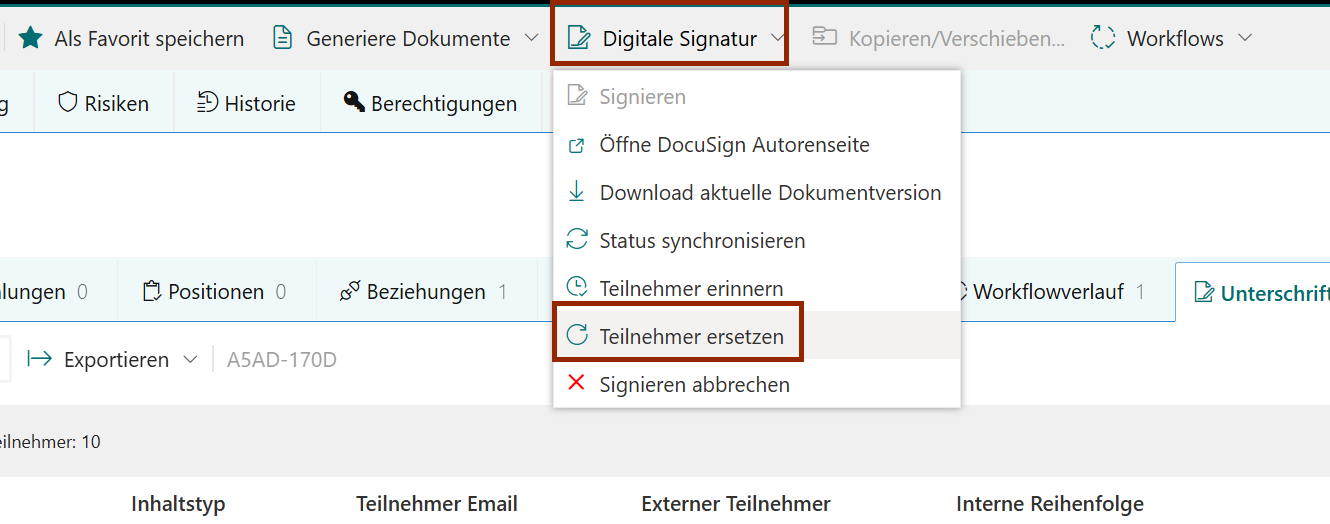
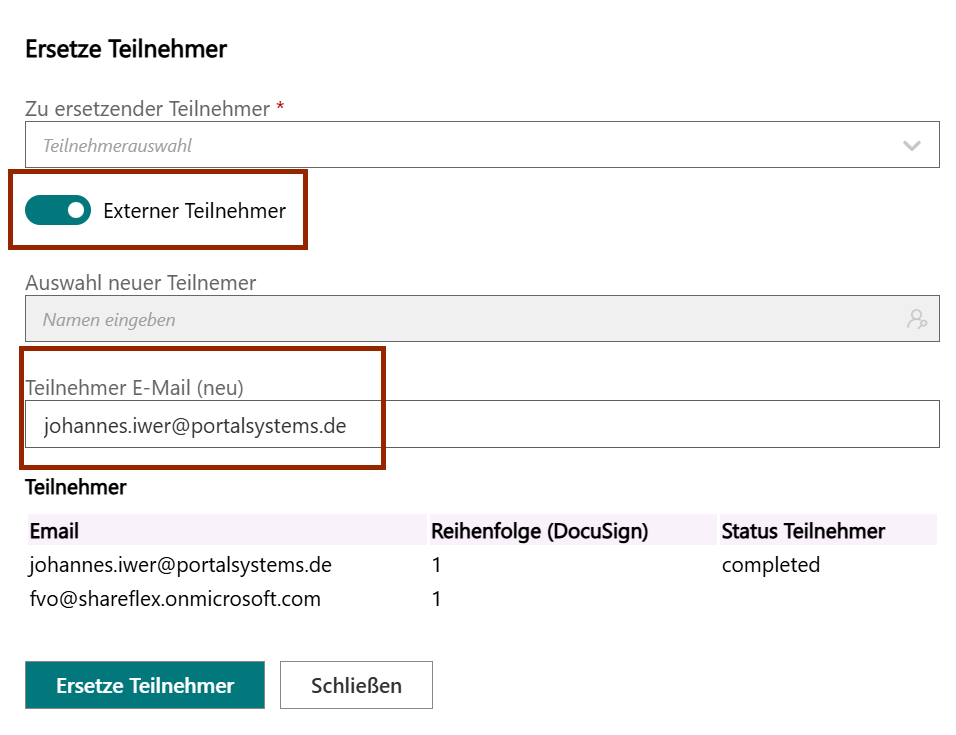
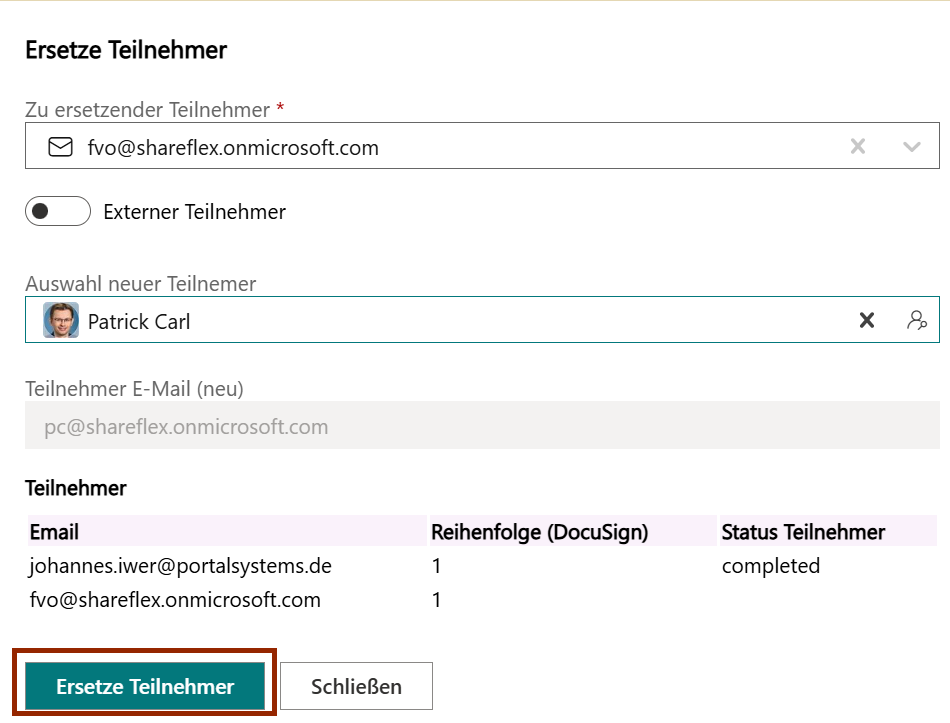
Replace Participant
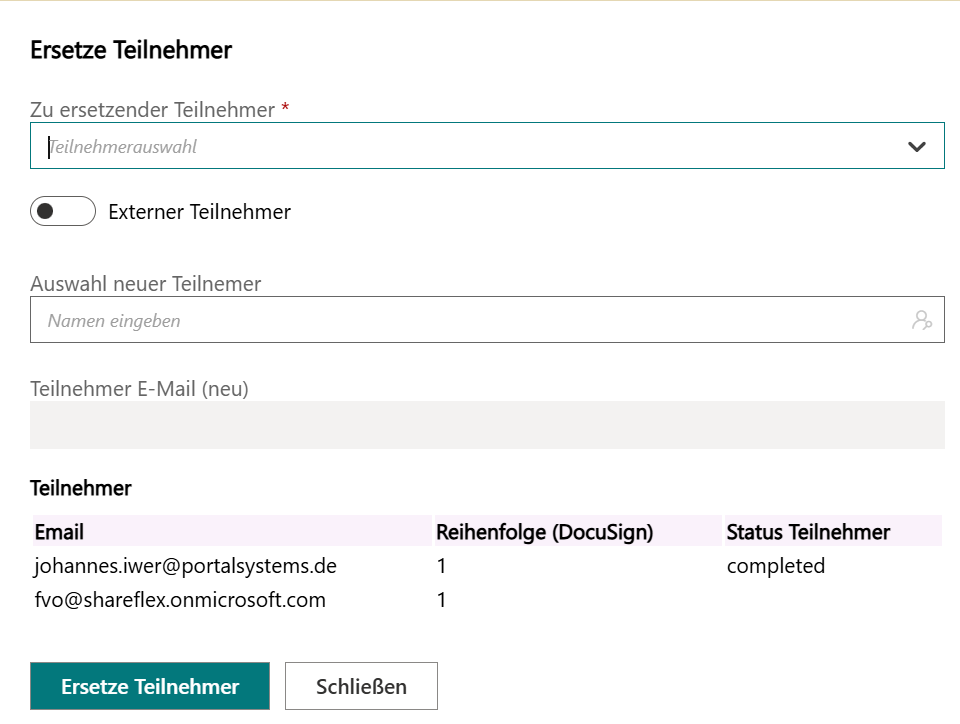
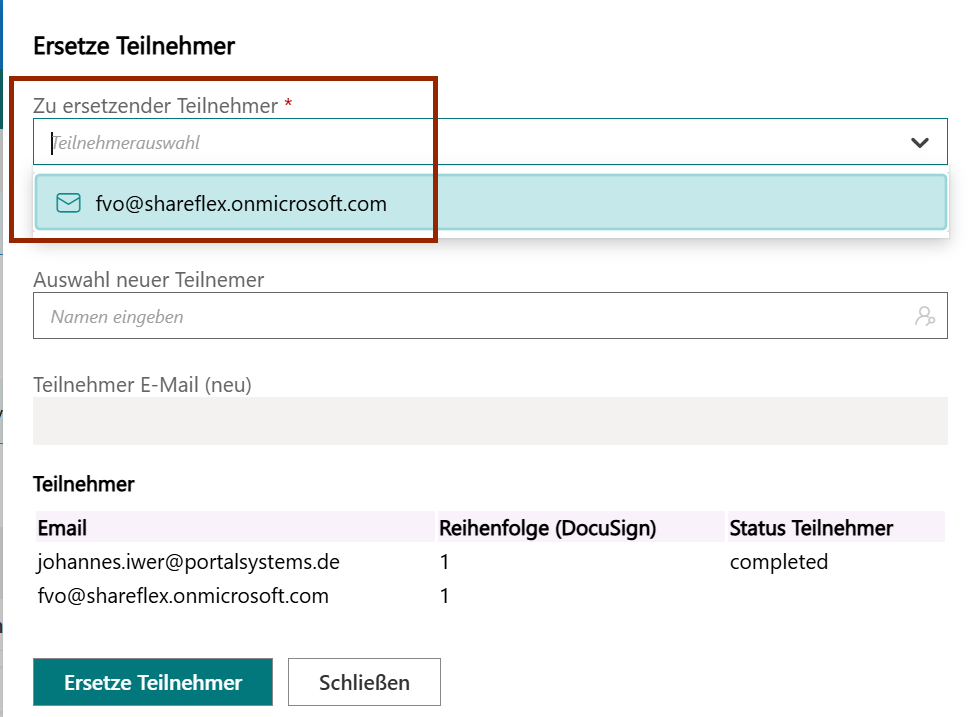
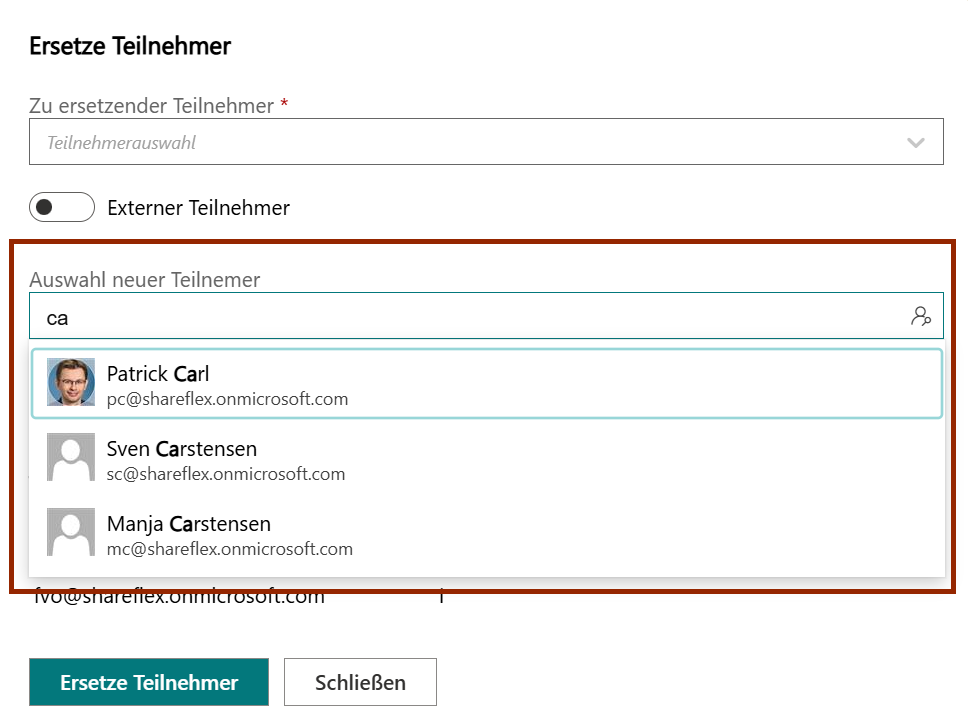
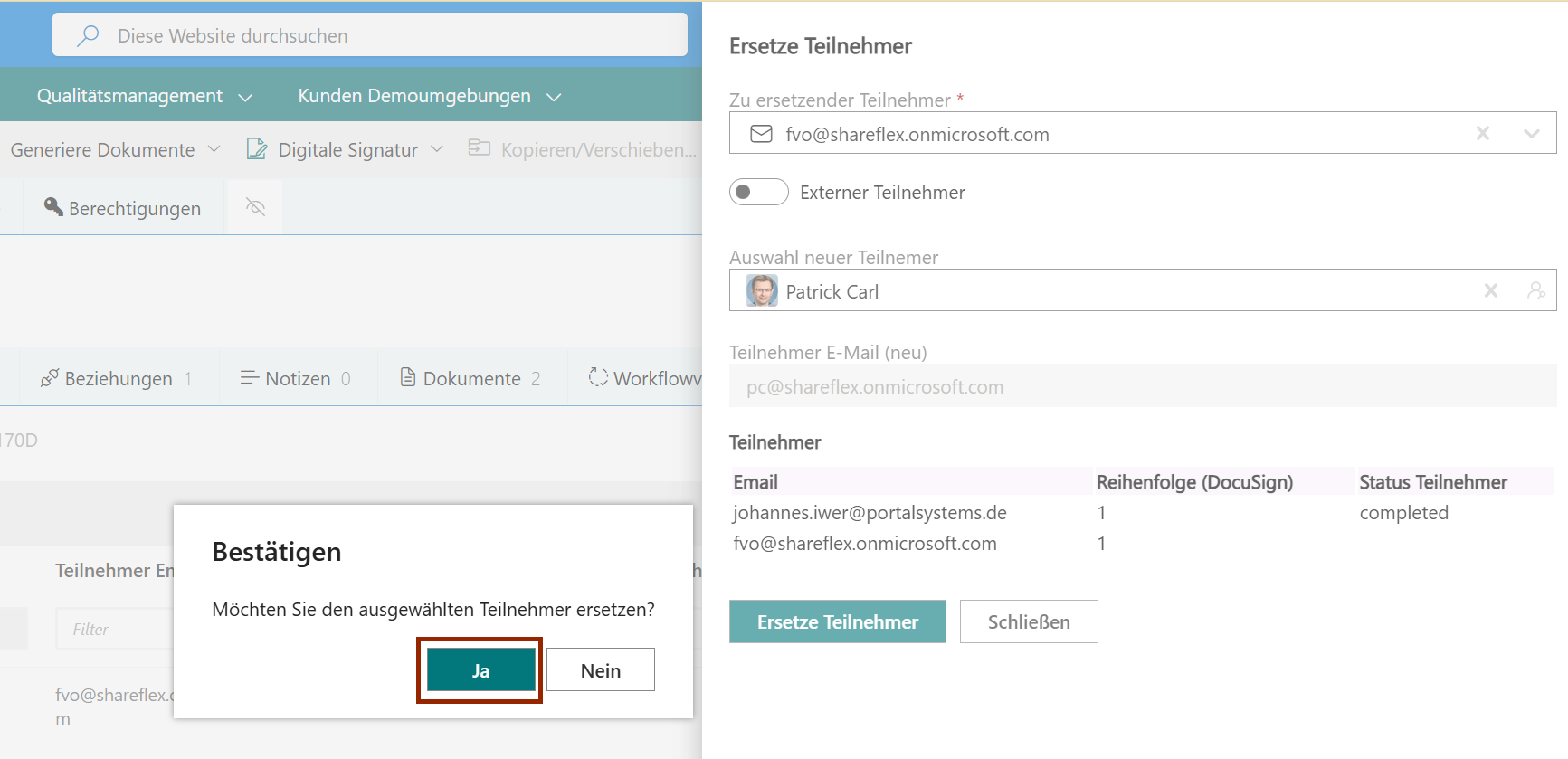
Replace one participant at a time during an active signing process.
- Open the file.
- Click e-Signing → Replace participant.
- Select the participant to replace.
- Select a new internal or external participant.
- Confirm the change.
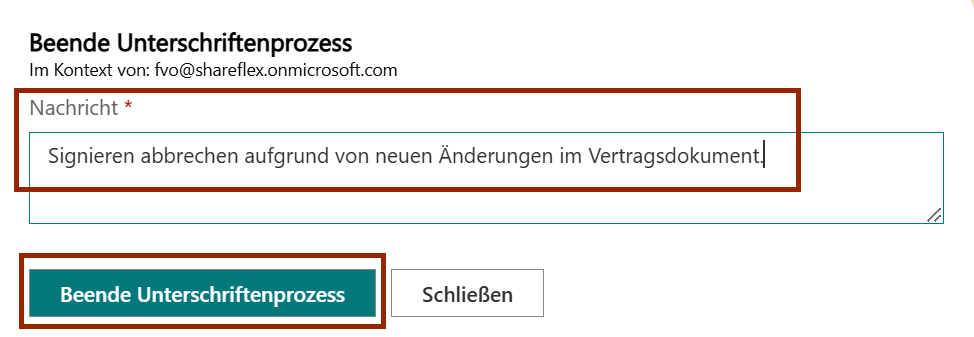
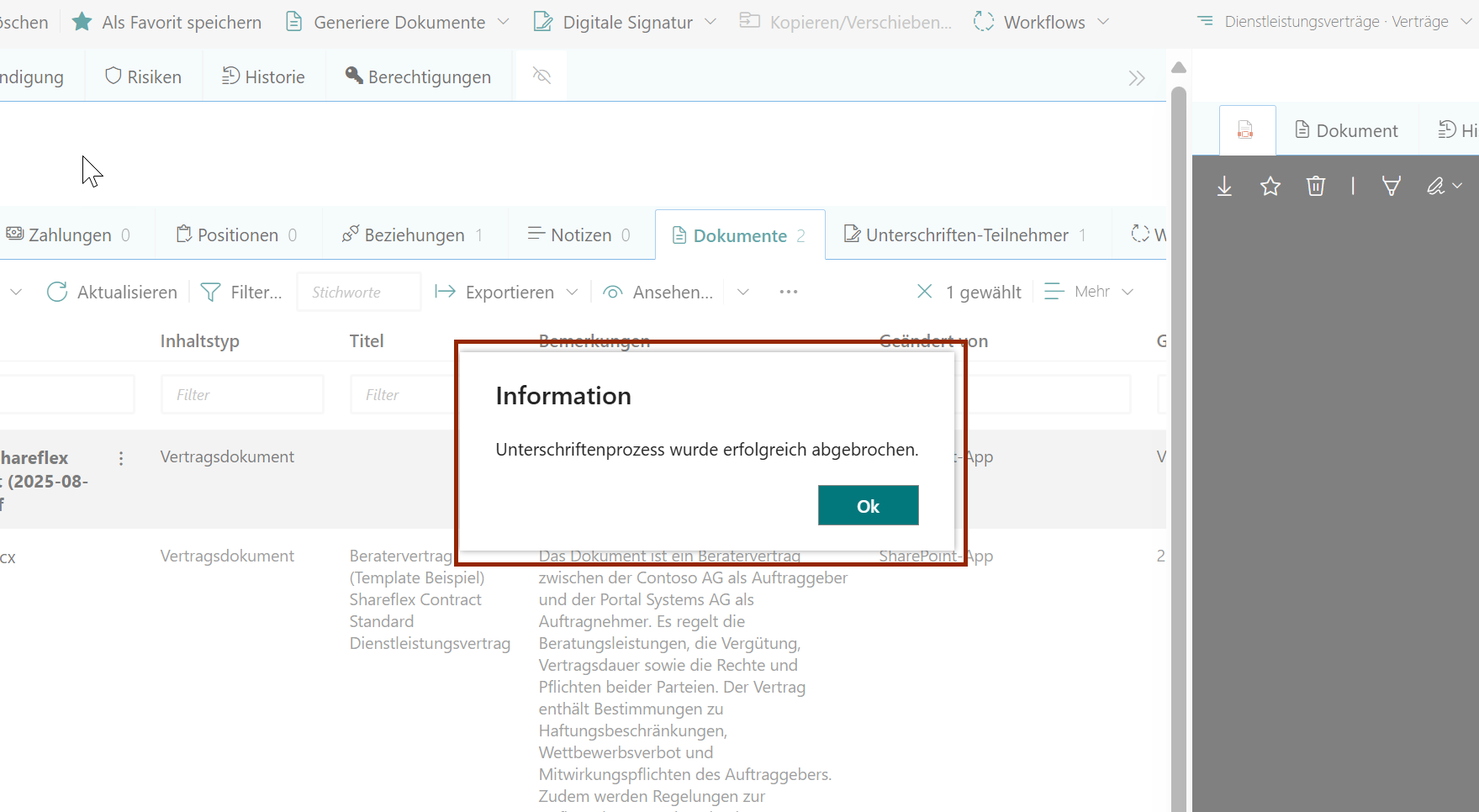
Cancel Signing
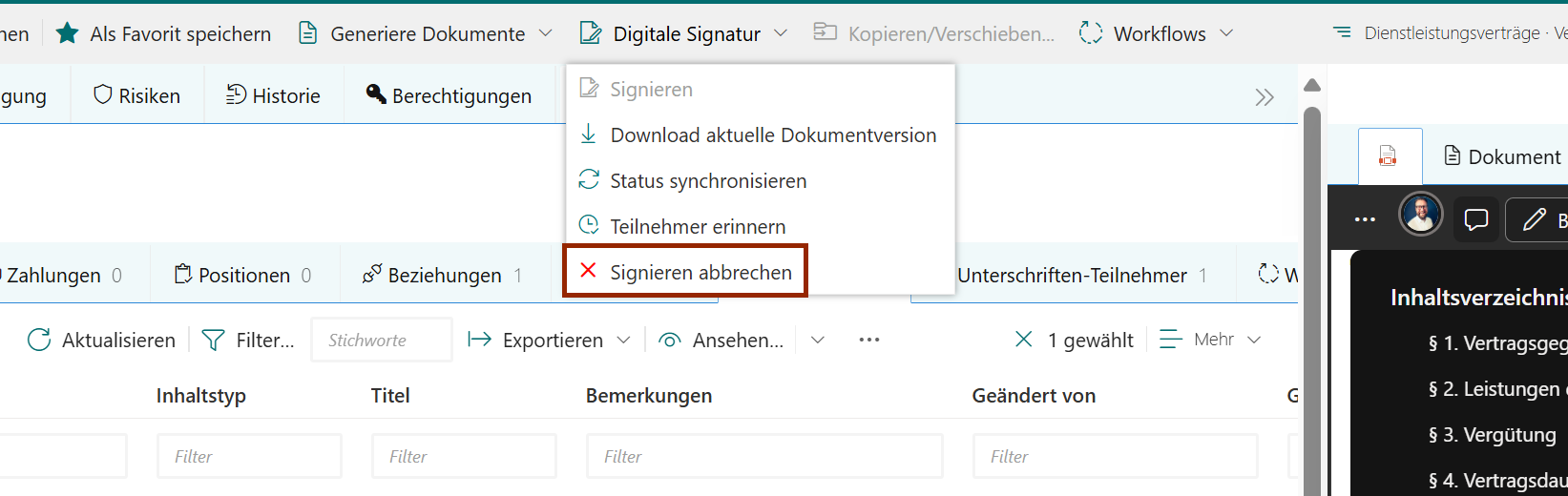
- Open the file with an active signature process.
- Click e-Signing → Cancel signing.
- Enter a reason for cancellation.
- Confirm termination.
Note: This module can be used in its current version but, unlike standard Shareflex products, it does not necessarily receive regular updates. No SLA is offered.
