
In our Shareflex Document Control and ISOPlanner article we explained the idea: valid documents are copied to an ISOPlanner library as PDF, and every page gets a “Shareflex Document Control” header with the document’s metadata and a clickable link back to the source. This article is the technical side: how a Shareflex Rules event receiver and a small Azure Function stamp metadata and a link into every PDF in SharePoint.
The result: metadata and a link in the PDF header
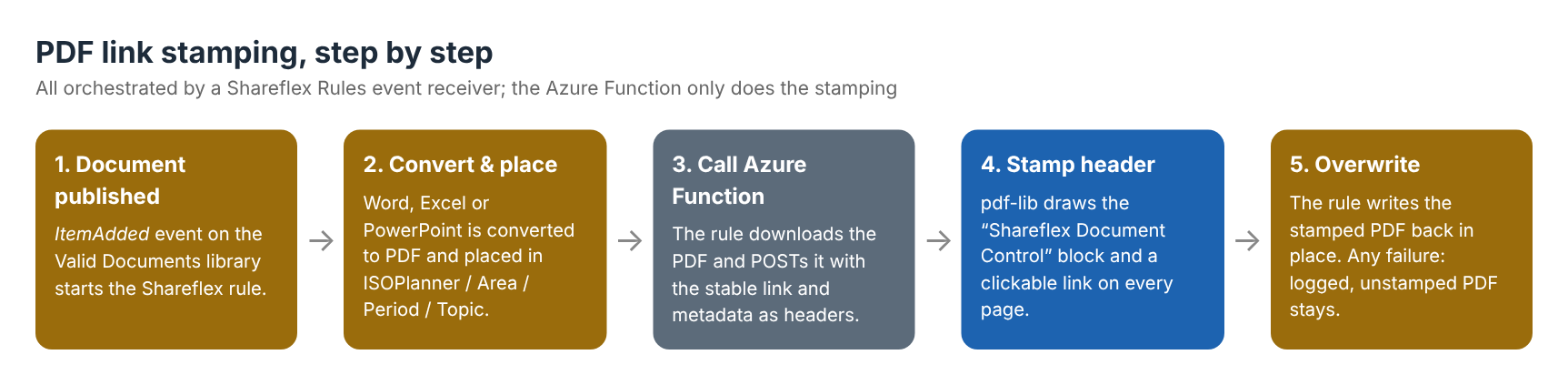
Every page of the PDF gets a compact header block: the heading “Shareflex Document Control”, the title as a clickable link, and the document type, area, period and topic. The original page content stays exactly as it was.
The architecture
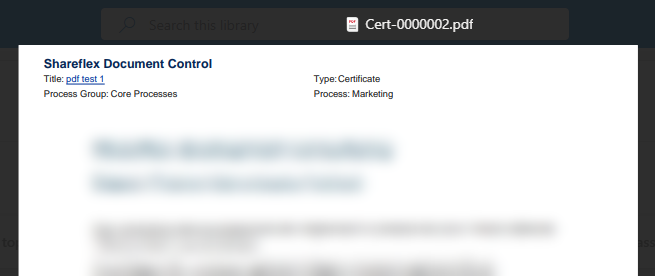
- Shareflex Rules runs the process: a remote event receiver on the Valid Documents library reacts on
ItemAdded– the moment a document is published. - SharePoint stores everything: the valid documents, the ISOPlanner library with its Area / Period / Topic folders, and a small
PDFStampSettingslist with the function URL and key. - An Azure Function (Node.js,
pdf-lib) does one thing only: take a PDF plus metadata, return the stamped PDF.
We keep the Azure Function deliberately “dumb”: it knows nothing about SharePoint, ISOPlanner or Shareflex. All business logic stays in Shareflex Rules, where it is versioned and deployed together with the rest of the solution – see how we develop Shareflex in VS Code with provisioning.
Step 1 – The Shareflex rule: place the document as PDF
When a document becomes valid, the rule reads its metadata, makes sure the folder ISOPlanner/Area/Period/Topic exists, and places the document there as PDF. Office files are converted with Shareflex’s built-in Microsoft Graph conversion; files that are already PDF are copied as-is. (Field names are simplified here.)
// Shareflex Rules - remote event receiver on the "Valid Documents" library (simplified)
import ShareflexRules from 'ShareflexRules';
import { config } from 'aoSite_Defaults_CUSTOM';
import { convertDocumentToPDF, isBuiltInConvertable } from 'ShareflexQualityDocuments_HelperFunctions';

const rules = new ShareflexRules(config);

performEvent().catch((e) => rules.logError('Copy to ISOPlanner failed', e));

async function performEvent() {
  if (rules.Event.type !== 'ItemAdded') return;           // only newly published documents

  const item = await rules.getEventItem('Id, Title, FileLeafRef, FileRef, qmDocumentType, sfArea, sfPeriod, sfTopic, qmRecordNo');
  const basePath = `${item.sfArea}/${item.sfPeriod}/${item.sfTopic}`;
  const isoPlannerListUrl = rules.Utils.combineUrls(rules.Context.siteUrl, '/ISOPlanner');

  // 1. Make sure ISOPlanner/Area/Period/Topic exists
  await rules.createFolder({ listUrl: isoPlannerListUrl, folderPath: basePath, ensureFolderPath: true, preCheck: true });

  // 2. Copy (PDF) or convert (Office) the valid document into that folder
  const fileName = await placeAsPdf(item, basePath, isoPlannerListUrl);
  if (!fileName) return;

  // 3. Stamp the Shareflex header + link into the placed PDF (fail-open)
  await stampLinkIntoPlacedPdf(item, basePath, fileName, isoPlannerListUrl);
}
A detail worth knowing: the built-in conversion cannot upload directly into a subfolder, so the PDF is first created at the library root and then moved into its folder with moveDocument.
Step 2 – Send the PDF to the Azure Function
Once the PDF is in place, the rule downloads it, sends it to the function together with the metadata in HTTP headers, and writes the stamped result back over the same file. Three choices make this robust:
- No secrets in code. The function URL and key come from the
PDFStampSettingslist. - A stable link. The link points to a Shareflex redirect page with the record number, so it keeps working for every future revision.
- Fail-open. Placing the PDF is the requirement; stamping is the extra. If the function is unavailable, the error is logged and the unstamped PDF stays.
async function stampLinkIntoPlacedPdf(item, basePath: string, fileName: string, isoPlannerListUrl: string) {
  try {
    // URL and function key live in a SharePoint settings list - never in code
    const settings = await getPdfStampSettings();             // reads Lists/PDFStampSettings
    if (!settings) return;

    const pdfBytes = await rules.getBinaryFileContentByUrl({ listUrl: isoPlannerListUrl, documentPath: `/${basePath}/${fileName}` });

    // Stable link: always opens the current record in Shareflex, whatever the revision
    const stableLink = `${rules.Context.siteUrl}/SitePages/Shareflex/View.aspx?$List=Redirect&targetList=Documents&qmRecordNo=${item.qmRecordNo}`;

    const connection = rules.ConnectionManager.createGenericHttpConnection({
      id: 'PdfLinkStamperConnection',
      baseUrl: settings.apiBaseUrl,
      headers: { 'x-functions-key': settings.apiKey },
    });

    const response: any = await rules.httpService({
      connectionId: connection.id,
      url: settings.apiBaseUrl,
      method: 'POST',
      headers: {
        'Content-Type': 'application/pdf',
        'X-Stamp-Link': stableLink,
        'X-Stamp-Title': encodeURIComponent(item.Title),
        'X-Stamp-Type': encodeURIComponent(item.qmDocumentType),
        'X-Stamp-Area': encodeURIComponent(item.sfArea),
        'X-Stamp-Period': encodeURIComponent(item.sfPeriod),
        'X-Stamp-Topic': encodeURIComponent(item.sfTopic),
      },
      body: pdfBytes,
      timeoutInSeconds: 60,
    });
    if (Number(response.status) >= 300) throw new Error(`Stamp failed: ${response.status}`);

    // The function returns Base64 text - write it back over the same file
    await rules.createFile({
      listUrl: isoPlannerListUrl,
      folderPath: basePath,
      fileName,
      content: String(response.body).trim(),
      encoding: 'Base64',
      overwrite: true,
      eventsActivated: false,                                  // don't trigger our own receiver again
    });
  } catch (error) {
    // Fail-open: the unstamped PDF stays in ISOPlanner, the error goes to the Shareflex log
    rules.logError(`Stamping failed for ISOPlanner/${basePath}/${fileName} - unstamped PDF left in place.`, error);
  }
}
Note eventsActivated: false on the write-back: without it, overwriting the file would fire events again on the target library.
Step 3 – The Azure Function: stamp every page with pdf-lib
The function is an HTTP-triggered Azure Function (v4 programming model) secured with a function key. It validates the input, loads the PDF with pdf-lib, draws the header on every page and returns the result as Base64.
const { app } = require('@azure/functions');
const { PDFDocument, PDFName, PDFArray, StandardFonts, rgb } = require('pdf-lib');

app.http('StampLink', { methods: ['POST'], authLevel: 'function', route: 'StampLink', handler: stampLink });

async function stampLink(request, context) {
  const link = request.headers.get('x-stamp-link');
  let linkUrl;
  try {
    linkUrl = new URL(link);
    if (!['http:', 'https:'].includes(linkUrl.protocol)) throw new Error();
  } catch {
    return { status: 400, jsonBody: { error: "Missing or invalid 'X-Stamp-Link'." } };
  }

  const title  = decodeHeader(request.headers.get('x-stamp-title')) || link;
  const type   = decodeHeader(request.headers.get('x-stamp-type'));
  const area   = decodeHeader(request.headers.get('x-stamp-area'));
  const period = decodeHeader(request.headers.get('x-stamp-period'));
  const topic  = decodeHeader(request.headers.get('x-stamp-topic'));

  const pdfBytes = Buffer.from(await request.arrayBuffer());
  if (!pdfBytes.length || pdfBytes.length > 50 * 1024 * 1024) {
    return { status: 400, jsonBody: { error: 'Empty or too large PDF.' } };
  }

  let pdfDoc;
  try { pdfDoc = await PDFDocument.load(pdfBytes); }
  catch { return { status: 400, jsonBody: { error: 'Not a valid PDF.' } }; }

  const font = await pdfDoc.embedFont(StandardFonts.Helvetica);
  const bold = await pdfDoc.embedFont(StandardFonts.HelveticaBold);

  for (const page of pdfDoc.getPages()) {
    let y = page.getSize().height - 24;
    page.drawText('Shareflex Document Control', { x: 24, y, size: 12, font: bold, color: rgb(0.02, 0.14, 0.32) });
    y -= 14;
    drawLink(pdfDoc, page, font, context, 24, y, 'Title', title, linkUrl.toString());
    drawLabel(page, font, 284, y, 'Type', type);    y -= 14;
    drawLabel(page, font, 24, y, 'Area', area);
    drawLabel(page, font, 284, y, 'Period', period); y -= 14;
    drawLabel(page, font, 24, y, 'Topic', topic);
  }

  // Base64, because the Shareflex Rules HTTP client reads responses as a string
  return { status: 200, headers: { 'Content-Type': 'text/plain' },
           body: Buffer.from(await pdfDoc.save()).toString('base64') };
}

function decodeHeader(v) { if (!v) return ''; try { return decodeURIComponent(v); } catch { return v; } }

function drawLabel(page, font, x, y, label, value) {
  page.drawText(`${label}: ${value}`, { x, y, size: 9, font, color: rgb(0.1, 0.1, 0.1) });
}

function drawLink(pdfDoc, page, font, context, x, y, label, value, url) {
  const blue = rgb(0, 0.2, 0.6);
  page.drawText(`${label}: `, { x, y, size: 9, font, color: rgb(0.1, 0.1, 0.1) });
  const vx = x + font.widthOfTextAtSize(`${label}: `, 9);
  const w = font.widthOfTextAtSize(value, 9);
  page.drawText(value, { x: vx, y, size: 9, font, color: blue });
  page.drawLine({ start: { x: vx, y: y - 1.5 }, end: { x: vx + w, y: y - 1.5 }, thickness: 0.5, color: blue });

  // pdf-lib has no link API, so build the /Link annotation by hand (best effort)
  try {
    const ctx = pdfDoc.context;
    const annot = ctx.register(ctx.obj({
      Type: 'Annot', Subtype: 'Link', Border: [0, 0, 0],
      Rect: [vx, y - 2, vx + w, y + 11],
      A: { Type: 'Action', S: 'URI', URI: url },
    }));
    const annots = page.node.lookup(PDFName.of('Annots'));
    if (annots instanceof PDFArray) annots.push(annot);
    else page.node.set(PDFName.of('Annots'), ctx.obj([annot]));
  } catch (e) {
    context.warn('Link annotation failed - visible stamp still applied.', e);
  }
}
Three things we learned
- Metadata in headers must be encoded. HTTP header values cannot carry every character safely, so titles with spaces, accents or special characters are sent with
encodeURIComponentand decoded in the function. - Return Base64, not bytes. The Shareflex Rules HTTP client treats the response as a string; binary content would be corrupted. Base64 text goes straight back into
createFilewithencoding: 'Base64'. - pdf-lib has no link API. The clickable link is a hand-built
/Linkannotation with aURIaction. It is best effort: if it fails for an odd PDF, the visible underlined title is still stamped and most viewers make it clickable anyway.
Deployment
The function is deployed from VS Code with the Azure Functions extension (or func azure functionapp publish). After deployment, the URL and the function key go into the PDFStampSettings list in SharePoint – nothing else changes on the Shareflex side. The same stamper can be reused for other Shareflex solutions, for example to put a contract number and a link into every page of a signed contract.
Frequently asked questions
How do you add metadata to a PDF header from SharePoint?
Read the metadata of the SharePoint item, send the PDF and the metadata to a small service that draws a header on every page (we use an Azure Function with pdf-lib), and write the result back to the library. In Shareflex this is all orchestrated by a Shareflex Rules event receiver.
Why an Azure Function and not Power Automate?
Power Automate has no native action to draw text and link annotations into an existing PDF without a paid third-party connector. A small Azure Function with pdf-lib does it in milliseconds, is cheap to run and is fully under your own control.
Why does the function return Base64?
The Shareflex Rules HTTP client reads responses as a string. Raw PDF bytes would get corrupted in that conversion; Base64 text survives the round trip intact and can be written straight back with createFile.
What happens if the Azure Function is down?
The step is fail-open: the PDF is already in ISOPlanner before stamping starts. If stamping fails, the error is logged in Shareflex and the unstamped PDF stays in place.
Is the link in the PDF still valid after a new revision?
Yes. The link points to a Shareflex redirect page with the document’s record number, not to a file or version. It always opens the current record.
Want this in your own document control?
The PDF link stamp works with Shareflex Document Control for SharePoint and can be connected to ISOPlanner or any other place where your PDFs end up. Ask us for a demo.
