A contract is not finished until it is signed. In many organisations that still means: download the PDF from SharePoint, upload it to a signing portal, type in the signers again, wait, download the signed version and upload it back to the right place. For a Benelux customer we removed all those steps. In their SharePoint contract management module on Shareflex, a user selects a PDF on the contract’s Documents tab and sends it for signature with Oodrive Sign or DocuSign – without leaving SharePoint.
In this post we show how we built it: the user flow, the architecture and real TypeScript code for both providers.
The user flow
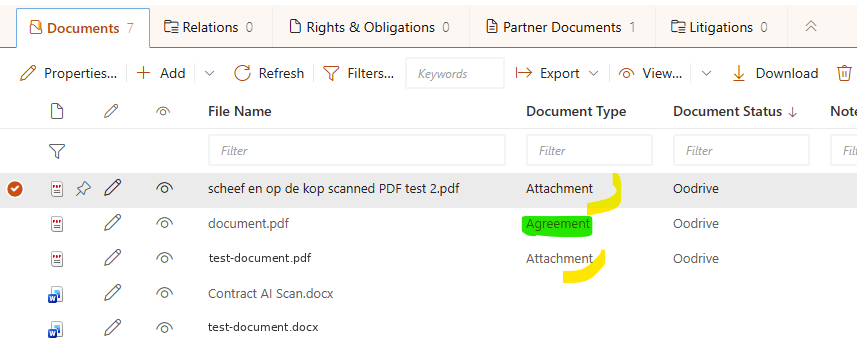
Everything starts from a PDF Sign menu on the Documents tab of a contract. Only the actions that make sense for the selected documents are enabled.

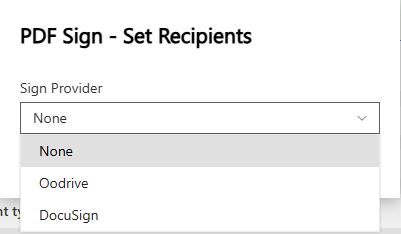
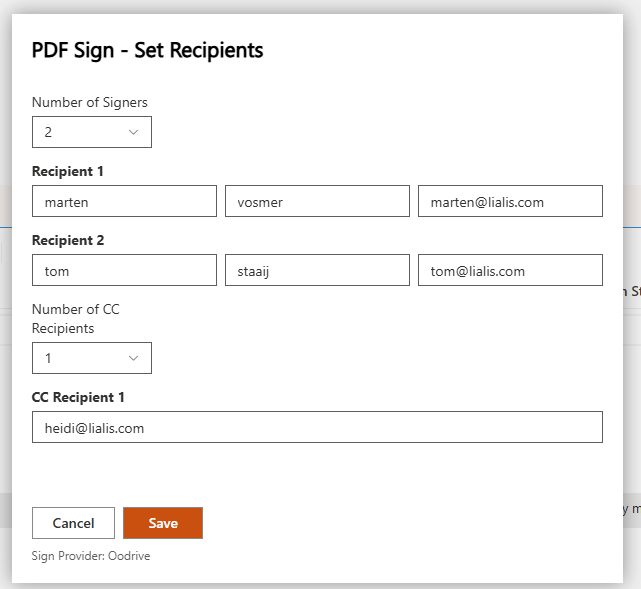
- Set Recipients – pick the provider and enter up to four signers.
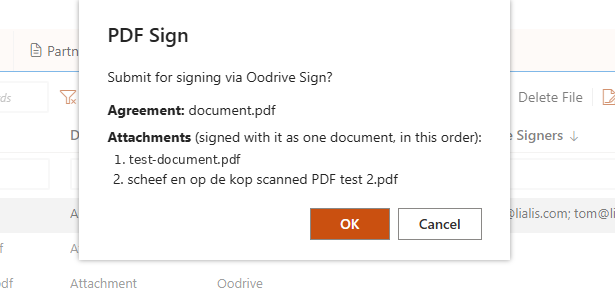
- Submit PDF for Sign – the document goes to Oodrive or DocuSign and the signers get their e-mail.
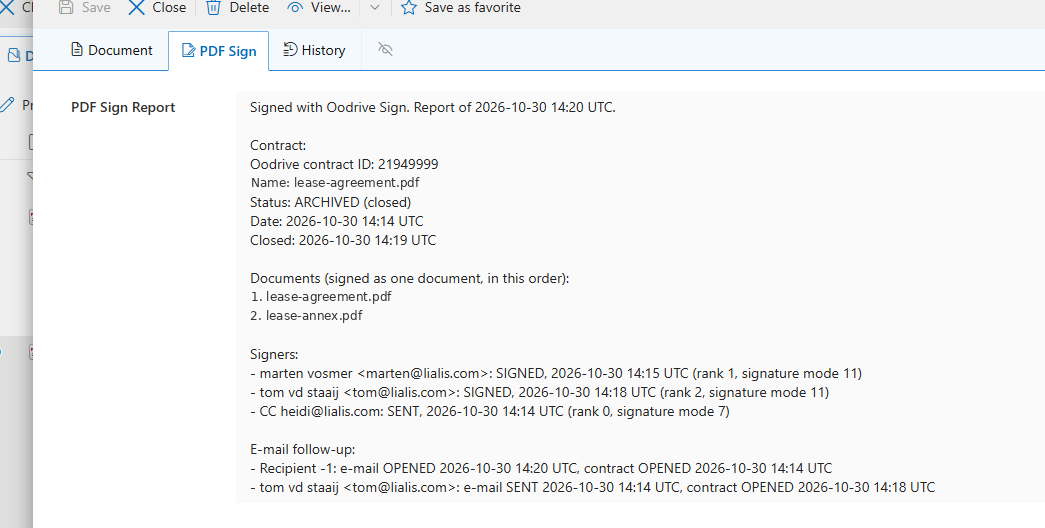
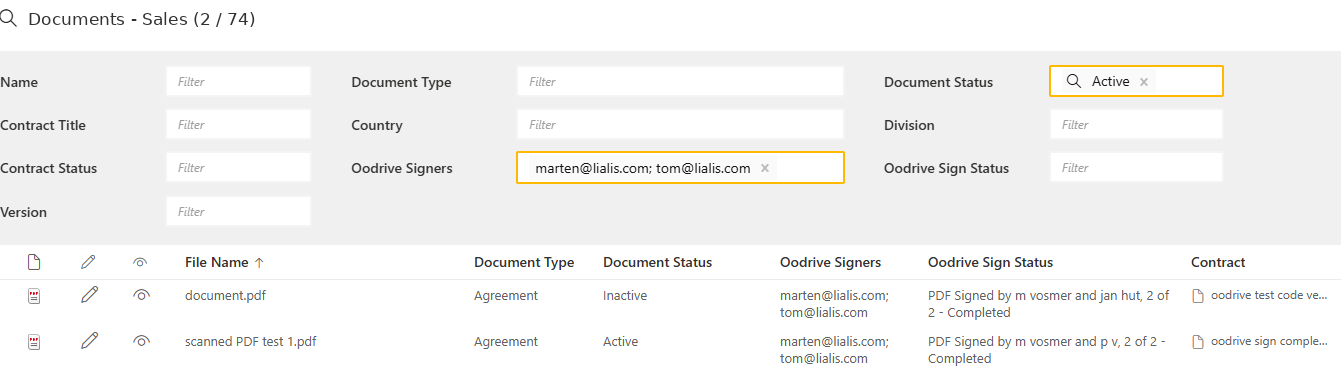
- Collect Sign Status – see who has signed, e.g. “PDF Signed by …, 1 of 2”.
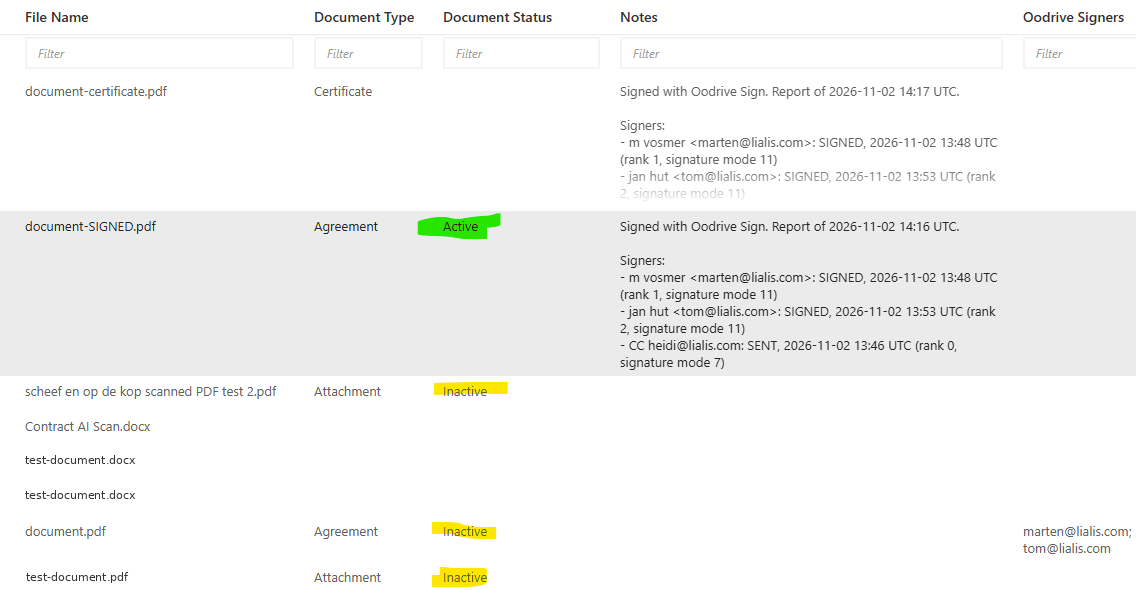
- Download Signed PDF and Download Sign Certificate – both land next to the original, in the contract’s own folder.


Architecture: the browser asks, the server acts
The most important design decision: no API key ever reaches the browser. The menu does not call Oodrive or DocuSign itself. It only sets a trigger field on the document:
// Client side: the button only sets a trigger field - no API key ever reaches the browser
const results = await Promise.allSettled(itemIds.map(itemId =>
SF.getListDataService().updateItem(args.contractWebInfo.webUrl, null, listUrl, itemId, {
PDFSignSubmitRequested: '1',
PDFSignSubmitStatus: 'Requested',
}),
));

A server-side Shareflex rule on the Documents list picks up the change and does the real work. One rule handles all four actions:
// Server side: one ItemUpdated rule, four actions
async function main() {
if (rules.Event.type !== 'ItemUpdated') return;
const trigger = await rules.getItemById({
listUrl: rules.Event.listUrl,
itemId: rules.Event.itemId,
fields: ['PDFSignSubmitRequested', 'PDFSignCollectStatusRequested', 'PDFSignDownloadRequested', 'PDFSignDownloadCertRequested'],
});
if (String(trigger?.PDFSignSubmitRequested ?? '').trim() === '1') {
await submitPdfForSign();
} else if (String(trigger?.PDFSignCollectStatusRequested ?? '').trim() === '1') {
await collectSignStatus();
} else if (String(trigger?.PDFSignDownloadRequested ?? '').trim() === '1') {
await downloadSignedPdf();
} else if (String(trigger?.PDFSignDownloadCertRequested ?? '').trim() === '1') {
await downloadSignCertificate();
}
}
Endpoints, keys, templates, the sender address and the e-mail texts are stored in a PDF Sign Settings list, with one active settings item per provider. Each document remembers its own provider, so Oodrive and DocuSign can be used side by side.
The menu itself is recalculated every time it opens, so Submit is only available when recipients are filled in, and the downloads only when everyone has signed:
subMenuProps: {
items: [ /* Set Recipients, Submit PDF for Sign, Collect Sign Status, Download Signed PDF, Download Sign Certificate */ ],
// Recomputed every time the menu opens, so the options always match the current selection
onRenderMenuList: (menuListProps, defaultRender) => {
const selectedItems = getSelectedDocumentItems(SF);
const disabledByKey: Record<string, boolean> = {
PDFSignSubmit: !selectedItems.some(hasFilledRecipient),
PDFSignCollectStatus: !selectedItems.some(hasBeenSubmittedForSign),
PDFSignDownloadSigned: !selectedItems.some(hasCompletedSignature),
PDFSignDownloadCertificate: !selectedItems.some(hasCompletedSignature),
};
menuListProps.items.forEach(item => {
if (item.key in disabledByKey) item.disabled = disabledByKey[item.key];
});
return defaultRender(menuListProps);
},
},
Oodrive Sign in five calls
For Oodrive the rule creates a contract, uploads the PDF, creates or matches the recipients as Oodrive contacts, attaches them in signing order and starts the transaction – which is what actually sends the e-mails.
// Oodrive Sign: 1. create contract 2. upload PDF 3. create/match recipients
// 4. attach recipients in signing order 5. start the transaction
const createContractResponse = await rules.httpService({
connectionId: connection.id,
url: `${apiBaseUrl}/contracts`,
method: 'POST',
body: JSON.stringify({
name: fileName,
contract_definition_id: contractDefinitionId,
vendor_email: senderEmail,
auto_close: 1, // countersign automatically once everyone has signed
}),
});
// ...upload, recipients...
const attachBody = recipientIds.map((recipientId, index) => ({
recipient_id: Number(recipientId) || recipientId,
signature_mode: signatureMode,
rank: index + 1, // recipients sign in the order they were entered
}));
await rules.httpService({ connectionId: connection.id, url: `${apiBaseUrl}/contracts/${contractId}/recipients`,
method: 'POST', body: JSON.stringify(attachBody) });
// This is what actually sends the notification e-mails
await rules.httpService({ connectionId: connection.id, url: `${apiBaseUrl}/contracts/${contractId}/transaction/start`, method: 'POST' });
One lesson from the field: the multipart upload. The standard FormData helper produced a request where Oodrive could not find the boundary, so we build the multipart body ourselves with a fixed boundary:
// Built manually: the SDK's FormData helper produced a boundary Oodrive's parser could not find
// ("Multipart: Boundary not found"), so the same fixed boundary is used in header and body.
const boundary = `LialisPDFSignBoundary${Date.now()}`;
const multipartBody = buildMultipartBody(boundary, fileName, fileBytes);
await rules.httpService({
connectionId: connection.id,
url: `${apiBaseUrl}/contracts/${contractId}/document`,
method: 'POST',
headers: { 'Content-Type': `multipart/form-data; boundary=${boundary}` },
body: multipartBody,
timeoutInSeconds: 120,
});
DocuSign: envelope, routing and anchored signature tabs
For DocuSign the same button creates an envelope with the contract plus a standard signature page, adds the signers with sequential routing (the same order as with Oodrive), places a signature tab for each signer using an anchor text, and sends the envelope.
// DocuSign: envelope with the contract + a signature page, sequential routing, anchored tabs, send
const createResponse = await rules.httpService({
connectionId: connection.id,
url: `${baseUri}/restapi/v2.1/accounts/${accountId}/envelopes`,
method: 'POST',
body: JSON.stringify({
status: 'created',
emailSubject: notificationTitle,
emailBlurb: notificationBody,
documents: [
{ documentId: '1', name: fileName, fileExtension: 'pdf', documentBase64: base64Encode(fileBytes) },
{ documentId: '2', name: 'Signature Page', fileExtension: 'pdf', documentBase64: DOCUSIGN_SIGNATURE_PAGE_PDF_BASE64 },
],
}),
});
const signers = recipients.map((recipient, index) => ({
email: recipient.email,
name: `${recipient.firstName} ${recipient.lastName}`,
recipientId: String(index + 1),
routingOrder: index + 1,
}));
// ...PUT recipients, then per signer:
body: JSON.stringify({ signHereTabs: [{ anchorString: `/sig${signer.recipientId}/` }] }),
// ...and finally PUT { status: 'sent' }
Authentication needed some thought. Shareflex rules run in a V8 engine, not Node.js, so the usual JWT flow with Node’s crypto library was not available. We use the Authorization Code Grant with a refresh token instead, and because DocuSign invalidates a refresh token as soon as it is used, the new one is saved immediately:
// DocuSign Authorization Code Grant refresh - rules run in ClearScript/V8, not Node.js,
// so JWT signing with Node's crypto module is not available here.
const tokenResponse = await rules.httpService({
connectionId: authConnection.id,
url: `${apiBaseUrl}/oauth/token`,
method: 'POST',
headers: { 'Content-Type': 'application/x-www-form-urlencoded', Authorization: `Basic ${basicAuth}` },
body: `grant_type=refresh_token&refresh_token=${encodeURIComponent(refreshToken)}`,
});
// DocuSign invalidates the old refresh token immediately, so the new one is stored
// before anything later in the flow can fail.
await updateSettingsRefreshToken(settingsItem, newRefreshToken);
Status and signed documents back in SharePoint
“Collect Sign Status” asks the provider who has signed and turns it into readable text in the list:
const signedNames: string[] = [];
for (const [index, recipient] of recipients.entries()) {
const transactionRecipient = transactionRecipients.find(tr => Number(tr.rank) === index + 1);
if (String(transactionRecipient?.signature_status ?? '').trim() === 'SIGNED') {
signedNames.push(`${recipient.firstName} ${recipient.lastName}`);
}
}
const status = signedNames.length === 0
? 'Submitted to Oodrive for signature'
: `PDF Signed by ${formatNameList(signedNames)}, ${signedNames.length} of ${recipients.length}`
+ (signedNames.length === recipients.length ? ' - Completed' : '');

When everyone has signed, the signed PDF and the signing certificate are downloaded into the same contract folder as the original, as “…-SIGNED.pdf” and “…-certificate.pdf”. That way they show up on the contract straight away:
// The signed copy goes into the SAME contract folder as the original, so it appears on the contract
const signedFileName = `${originalFileName.replace(/\.pdf$/i, '')}-SIGNED.pdf`;
const listServerRelativeUrl = rules.Utils.makeServerRelative(rules.Event.listUrl);
const fileDirServerRelative = String(documentItem?.FileDirRef ?? '');
const folderPath = fileDirServerRelative.startsWith(listServerRelativeUrl)
? fileDirServerRelative.slice(listServerRelativeUrl.length)
: '';
await rules.createFile({
listUrl: rules.Event.listUrl,
fileName: signedFileName,
content: base64Encode(signedPdfBytes),
folderPath,
ensureFolderPath: true,
encoding: 'Base64',
overwrite: true,
eventsActivated: false,
});
Every step is also written to a PDF Sign log on the document, so support can always see what happened.
What it delivers
- No more download/upload: from contract to signed contract without leaving SharePoint.
- Two providers, one flow: Oodrive and DocuSign behind the same buttons.
- Secure: keys and tokens stay server-side, in a settings list.
- Signing order: up to four signers, in the order you choose.
- Proof in the right place: signed PDF and certificate are stored with the contract.
- Transparency: status column and a log per document.
Lessons learned
- Let the browser set a flag and let the server talk to external APIs.
- Design one user flow and hide the differences between providers in the rule.
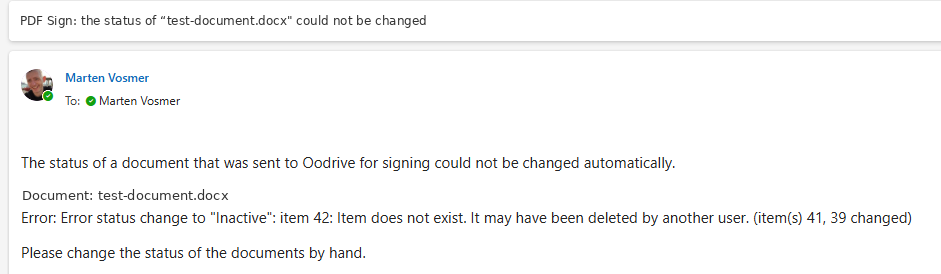
- Store refresh tokens immediately; they are single-use.
- Write results back next to the source document, not in a separate place.
Signing contracts from SharePoint?
Digital signing is part of the contract management we build on Shareflex Contract. Also read about our Shareflex DigitalSign API for DocuSign, the AI PDF scan and the Copy Contract feature in the same module. Get in touch for a demo.